Why did publishing to my website fail?
On this page
Publishing fails for one of four reasons: your website refused our login (the password or token was changed or revoked), the account we connect with is not allowed to do it, your site could not find what we were writing to, or your site did not answer in time. Open Project settings, Connections, Publishing activity: the failed line says which, with a Reconnect or Retry button.
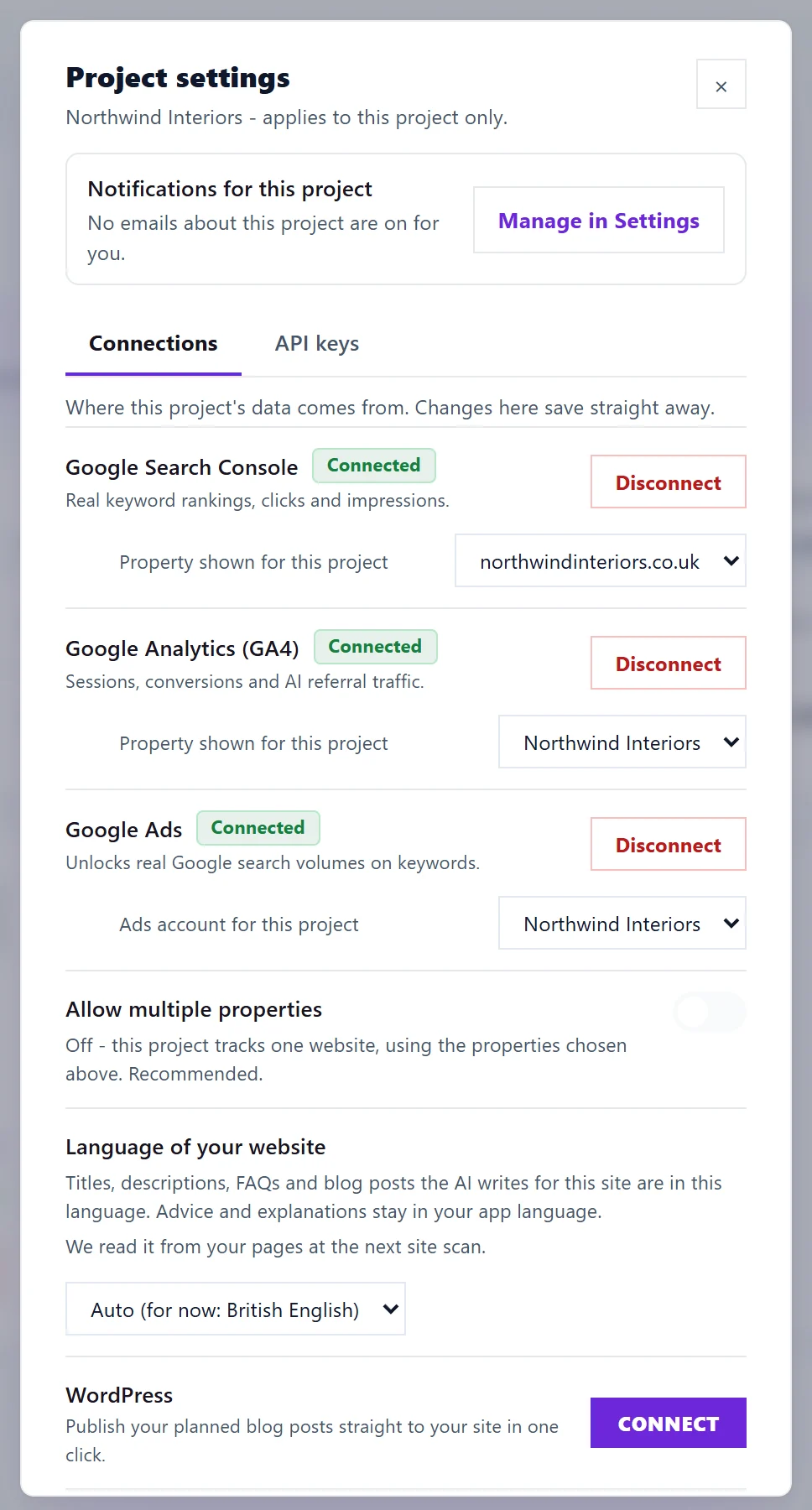
Find out what went wrong
- On the Projects screen, press the cog on the project to open Project settings.
- On the Connections tab, scroll to the website platforms and press Publishing activity.
- Find the line marked failed. Under it is the reason in plain words and one button.
The reasons, and what to do
| The message says | What to do |
|---|---|
| The site refused our login. The password or token has probably been changed or revoked. | Create a new password, token or key in your website system and press Reconnect |
| The account we connect with is not allowed to do this. | Give that account an editor or admin role, or the missing permission, then reconnect |
| The site could not find what we were writing to. | Check the site address and, on Strapi or Webflow, the collection, then reconnect |
| The site did not answer in time. It may have been down for a moment. | Check your site is up, then press Retry from the Blog Plan or Retry from Opportunities |
| The site did not accept the change. | Check your website system for a plugin or setting that blocks changes, then retry |
The platform guides list the exact permissions each one needs: WordPress, Shopify, Wix, Webflow, Strapi and Custom API.
Other common causes
- A security plugin or firewall on your site blocks requests from outside. Ask your host or check the plugin to allow UtilitySEO.
- WordPress meta descriptions: some SEO plugins block changes to the description from outside. The change fails with copy-paste instructions; paste it in by hand.
- Strapi: a token that can read but not create only shows up on the first publish. Give the token create access.
- Wix titles: the key needs the Manage SEO permission as well as Blog.
- Webflow titles are saved to staging. They are not failed: publish your site in Webflow to put them live.
- Your access: View Only and Billing members cannot publish. The message says your access to the project is view-only. Ask the workspace owner.
- The wrong site: check which site a project publishes to; it may be using a connection shared across the workspace. See publishing connections and activity.
Questions people ask
Was anything half published?
A failed publish is logged as failed and the post stays unpublished in UtilitySEO, so you can publish it again once the problem is fixed. Check your website system in case a draft was created before the failure.
It keeps failing after I reconnected. What now?
Email support@utilityseo.com with the project name, the platform and the time of the failed line in Publishing activity.