How do I publish blog posts to my website?
On this page
Connect your website once in the project's settings, then open a written post in the Blog Plan and go to its Publish step. UtilitySEO can publish to WordPress, Shopify, Webflow, Wix, Strapi or your own API, either as a draft for you to check or live straight away, and you can take a post down again from the same place. Without a connection, copy the post as HTML and paste it in yourself.
Connect your website
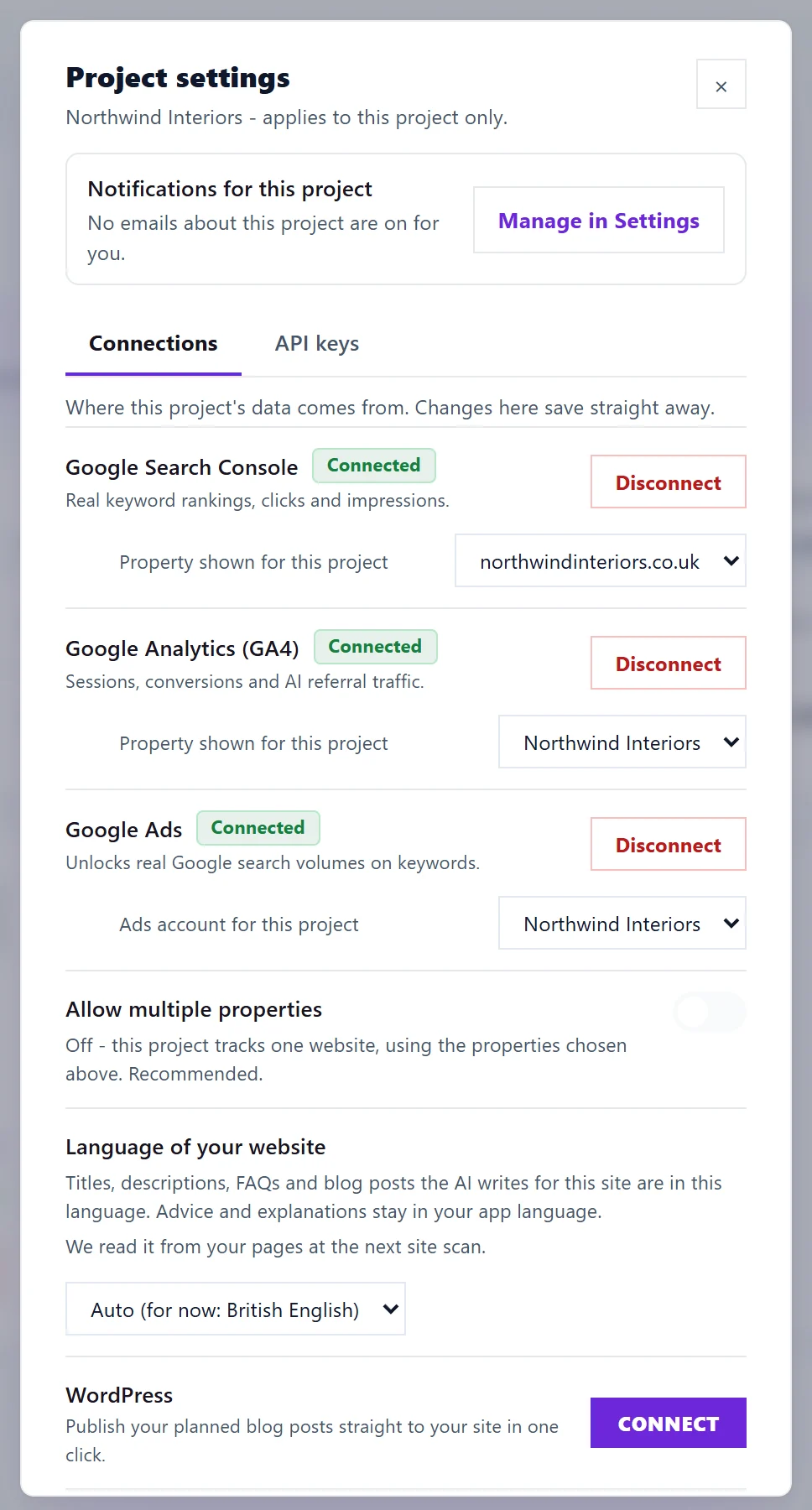
- Open Projects and click the cog beside your project (Project settings).
- Under Connections, pick your website's system and press Connect.
- Paste the key it asks for. The card says where to find it (see the table below).
- Under Publish posts as, choose a draft (you review it in your website before it goes live) or Publish immediately.
- If you can manage the workspace, choose under Use these credentials for whether the connection is for This project only or Every project in the workspace.
| Website | Where the key comes from |
|---|---|
| WordPress | Users, Profile, Application Passwords. This is not your normal login password. |
| Shopify | A custom app with an Admin API access token |
| Webflow | Site settings: a site token with CMS read and write |
| Wix | Account Settings, API Keys: a key with Blog and Manage SEO permissions, plus your Site ID |
| Strapi | Settings, API Tokens, plus the collection to write into |
| Your own API | Your posts address, and which field each part of a post goes into |
Publish a post
- Open Content, then Blog Plan, and open a written post.
- Go to the Publish step. Under Where should it go?, your connected website is picked for you.
- Choose how it arrives: As a draft (you publish it there) or Live straight away. The post's address is shown, and Make a featured image creates an image for it.
- Press Send to your site as a draft, or Publish live on your site.
- The step then says it is in your website as a draft or published, with Open it. Add or check the live address under Add the published link so we can track it.
Take it off the live site turns it back into a draft in your website. Remove from your website deletes it from there entirely (on Wix it goes to the Wix trash bin); you can publish it again from UtilitySEO at any time. Every publish, unpublish and connection change is recorded in a log on the connection.
Not connected? Copy it across
Choose Copy and paste it myself and press Copy the HTML, then paste it into your website editor. The Draft step's More menu also has Copy markdown and Download .md. Once the post is live, paste its address under Add the published link and press Start tracking, so we can check whether Google has indexed it. See track a published post.
Questions people ask
Can I publish to Squarespace?
Not at the moment. Publishing to Squarespace is not possible from UtilitySEO, so copy the post across instead.
Why was my website connection refused?
Usually the key was mistyped, or the account behind it cannot create posts. Give that account an editor or admin role, then connect again. For your own API, we only connect when posts can be updated and removed again, so nothing is published that cannot be undone.
Who on my team can publish?
Team members with view-only or billing access cannot publish or change connections. See invite your team.
Can posts publish automatically?
Yes, with Autopilot in the Blog Plan. See blog autopilot and images.