What are projects and workspaces in UtilitySEO?
On this page
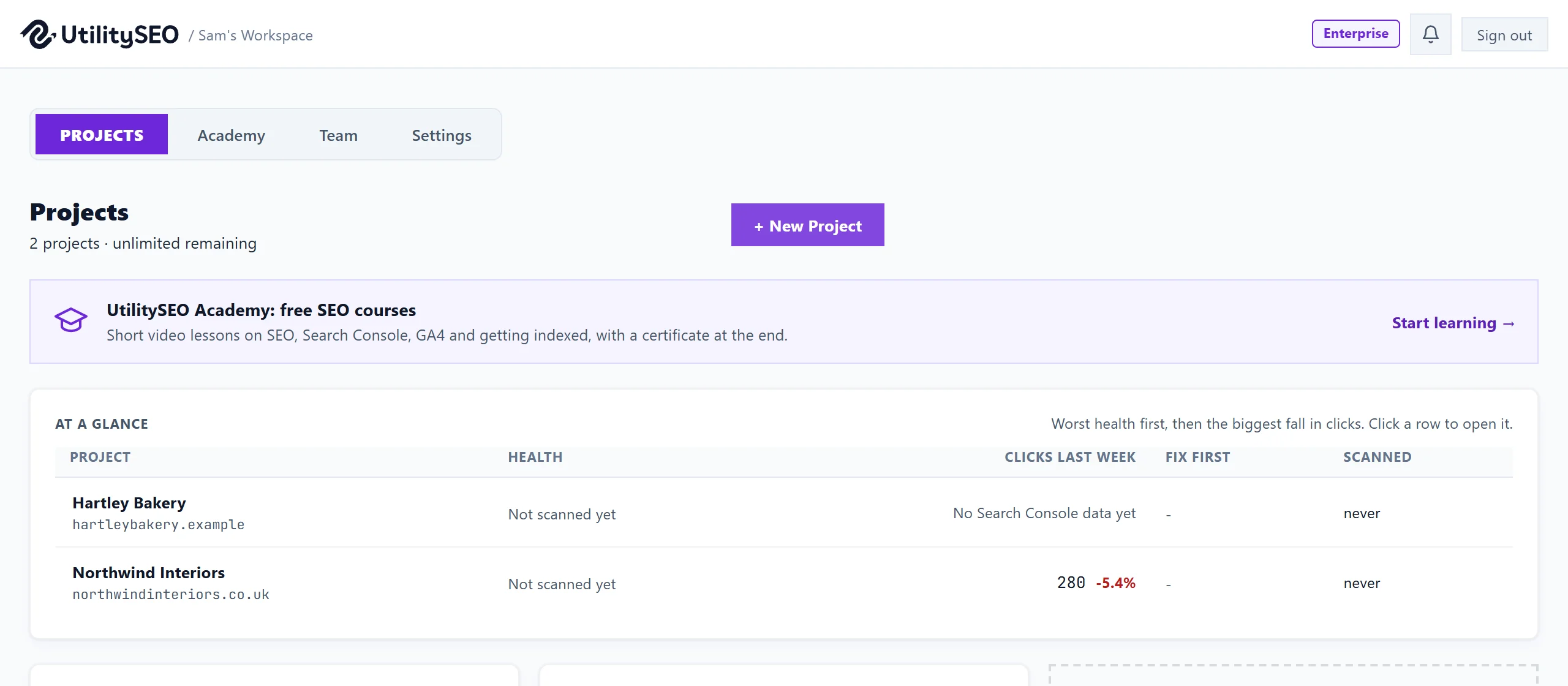
A project is one website: its site scans, keywords, Google connections, AI visibility checks and reports. A workspace is the space that holds your projects and your team. You see it on the Projects screen, and if you have been invited to someone else's workspace you switch between them with Back to workspaces.
Projects
Each project tracks one website, and reads one Search Console property and one GA4 property, so its numbers belong to that site alone. See one website, one property.
| Plan | Projects |
|---|---|
| Minimum | 1 |
| Entrepreneur | 3 |
| Enterprise | Unlimited (fair use) |
To add one, press + New Project on the Projects screen. See add your website.
Moving around
- Projects screen: every site with its health and when it was last scanned. Press Open Project to go in. With more than one project, At a glance lists them all, worst health first. See the Projects screen.
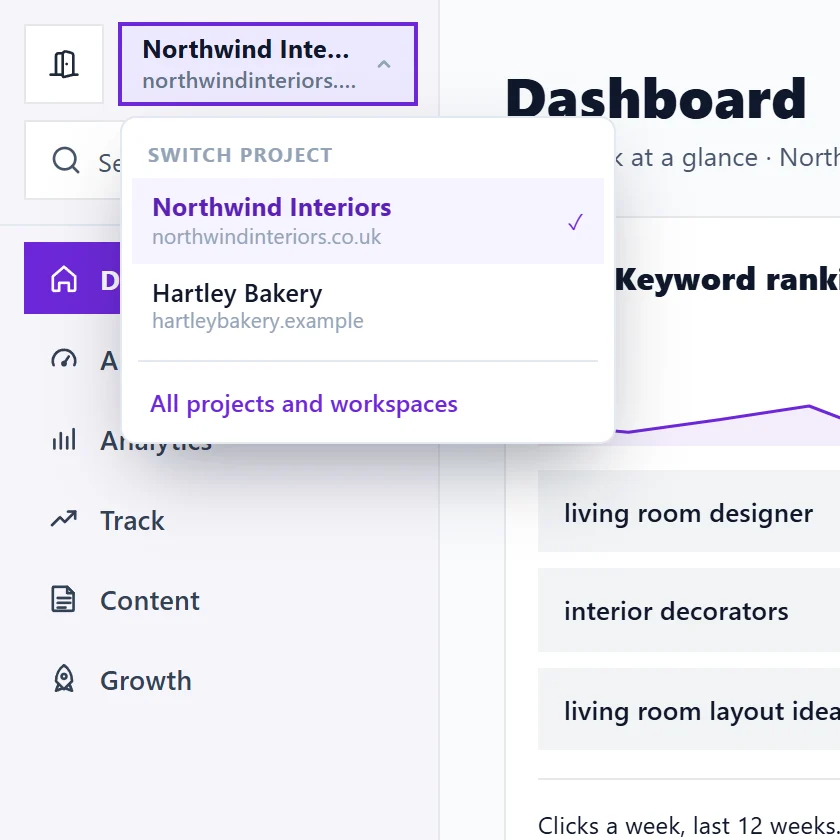
- Project switcher in the sidebar: jump between projects without going back.
- Back to workspaces: switch between your own workspace and any you have been invited to.
The Projects screen also has tabs for Academy (free courses), Team and Settings.
Project settings
Press the cog on a project card to open Project settings. There you can:
- connect or disconnect Search Console, GA4 and Google Ads on the Connections tab, and choose which property the project reads;
- set the Language of your website, which is the language we write titles, descriptions and blog posts in for that site;
- create API keys for your own software (owner and Full Access members);
- see which emails about this project are on for you, with Manage in Settings.
Everything on the panel is explained in Project settings explained.
Renaming a project
Only the workspace owner can rename a project. Press the pencil on the project card, type the new name and press Save (or Enter). The website address stays the same.
Deleting a project
Only the workspace owner can delete a project.
- On the Projects screen, press the bin icon on the project.
- Read what goes, then press Continue.
- Type the project name exactly as it appears. Delete this project stays locked until it matches.
- Press Delete this project, or Keep the project to back out.
Its scans, keyword history, reports, to-do list and AI visibility runs are deleted, every connection is disconnected, and client report links stop working. This is final: there is no undo.
Questions people ask
Can a team member see all my projects?
Only the ones you give them. When you invite someone you can limit them to certain projects. See invite your team.
What happens to a project when I reach my plan's limit?
Projects you already have keep working. You cannot add another until you upgrade or delete one.
Does deleting a project cancel my plan?
No. Your plan and your other projects carry on. To stop paying, see change or cancel your plan.