How do I invite my team or a client to UtilitySEO?
On this page
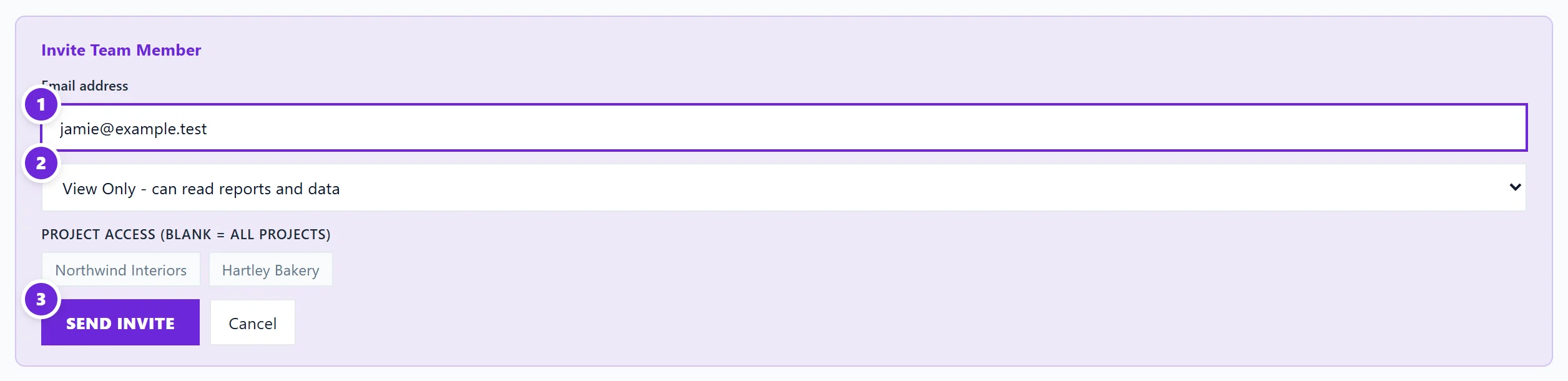
Open the Projects screen, choose the Team tab and press + Invite Member. Enter their email address, pick a role (View Only, Full Access or Billing), choose which projects they can see, and press Send Invite. Entrepreneur includes you and 2 more people; Enterprise has unlimited seats; Minimum is for one person.
Invite someone
- Go to Projects and open the Team tab. Only the workspace owner sees the invite button.
- Press + Invite Member.
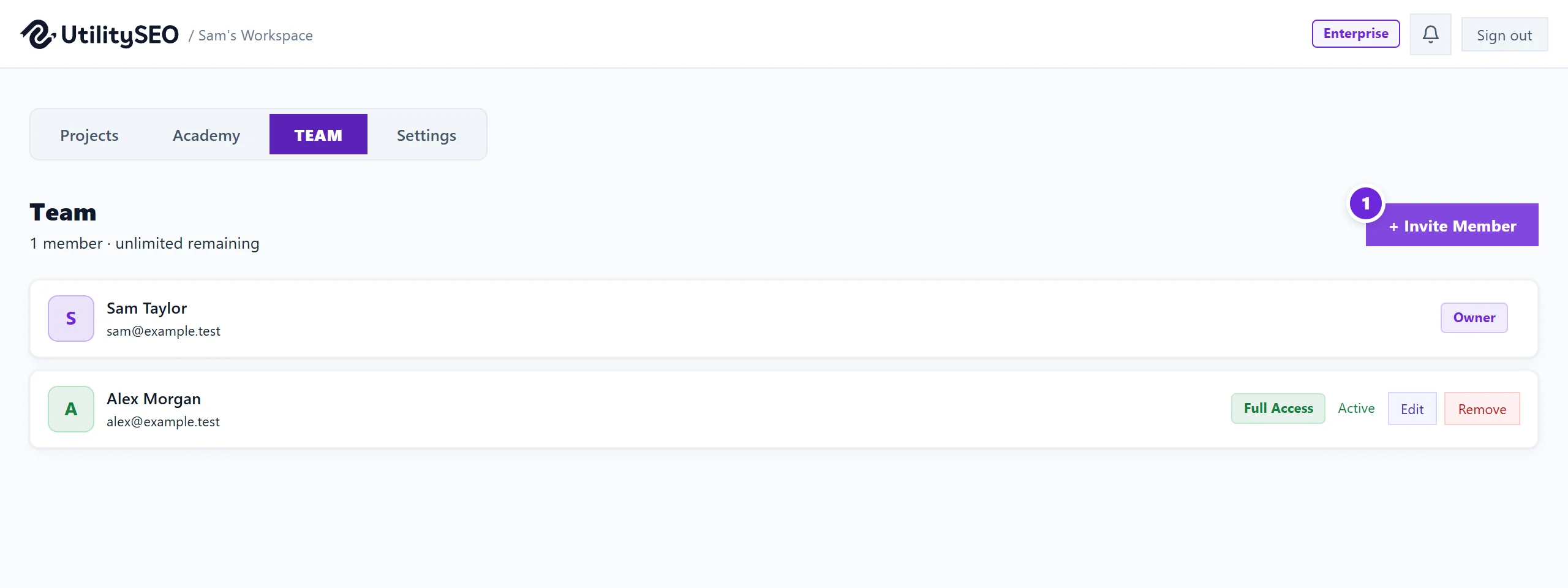
- Type their Email address.
- Choose a role: - View Only: can read reports and data. - Full Access: can edit projects and run scans. - Billing: for the person who looks after payments. Sees every project but, like View Only, cannot change anything in them.
- Under Project Access (blank = all projects), pick the projects they should see, or leave it blank for all of them. (A Billing member always sees every project.)
- Press Send Invite.
What they receive
Someone new to UtilitySEO gets an email with a Choose your password button. The link works once and lasts 7 days. If it runs out, they can use Forgot password? on the sign-in page with the same email address.
Someone who already has a UtilitySEO account signs in as usual. Your workspace then appears for them alongside their own, and they move between them with Back to workspaces.
What each role can and cannot do
View Only and Billing members can look at everything in the projects they are given, but they cannot:
- publish blog posts to your website;
- apply title or description changes to your live site;
- connect or disconnect a website platform such as WordPress;
- edit Etsy listings;
- share the client report link or add report recipients.
If they try, the app tells them their access to the project is view-only. Full Access members can do all of these. For the full list, see team roles explained.
Change or remove someone
On the Team tab, each person shows as Pending until they accept and Active after. Press Edit on their row to choose a new role or change which projects they can see under Project Access, then press Save. To take someone off the team, press Remove, then Yes, remove. They lose access to every project in your workspace straight away.
Seats on each plan
| Plan | People (you included) |
|---|---|
| Minimum | 1 |
| Entrepreneur | 3 |
| Enterprise | Unlimited (fair use) |
When every seat is used, the Team tab says so and names the plan with more.
Questions people ask
Does each team member need their own plan?
No. Members work inside your workspace on your plan.
Do team members get my emails?
No. Each person chooses their own emails in Settings, then Notifications. See choose your emails.
Can I invite a client just to read their reports?
Yes, as View Only and limited to their project. If they only need the weekly figures and do not want an account, send them a client report link instead: see weekly reports and client links.