What does the Dashboard show?
On this page
The Dashboard is your week at a glance for the project you are in. Four cards at the top show where you rank and what moved, how often AI answers name you, the searches you are close to winning, and your latest site scan. Under them sit your setup checklist, four headline figures, and cards that only appear when they have something to say.
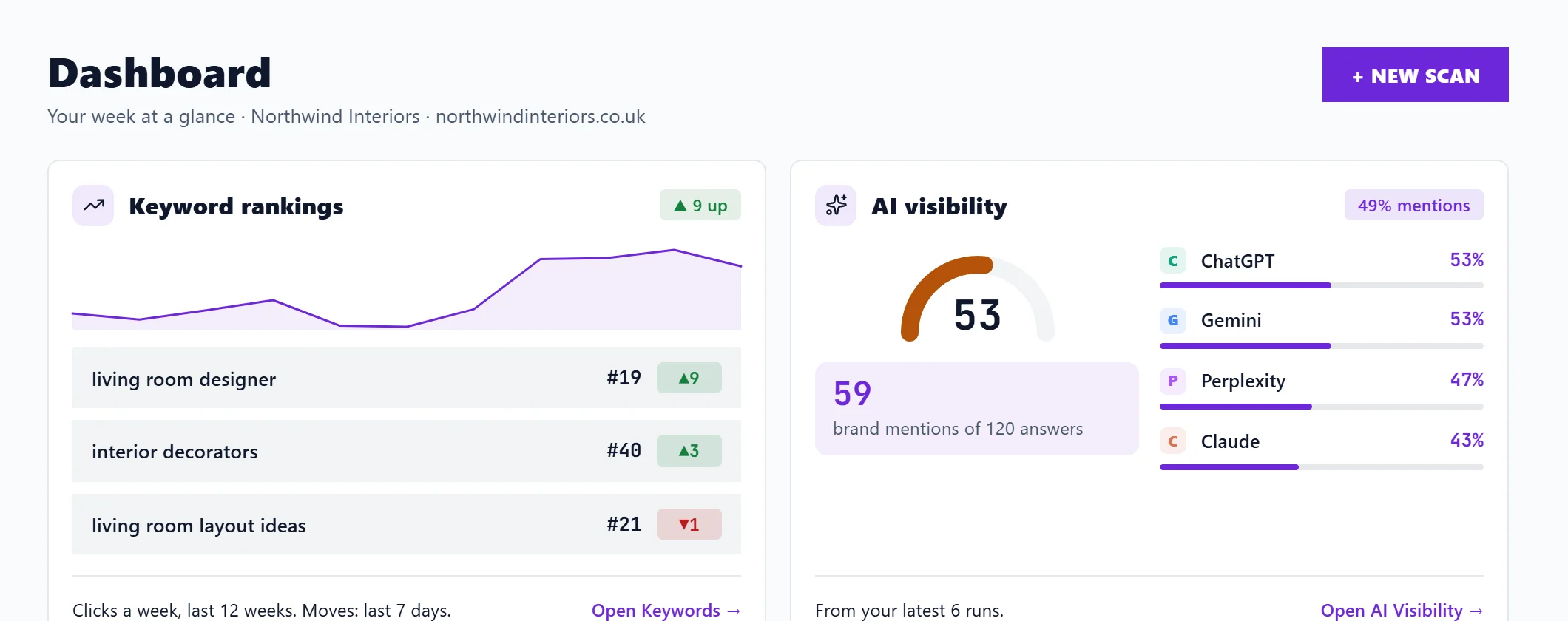
Open it with Dashboard in the sidebar. The Dashboard and Activity tabs sit at the top; Activity is the full log of changes (see the Activity log). + New scan, top right, opens the New Scan page.
The four top cards
Each card loads on its own, so a slow Google connection never holds up the others. Each has its own Try again if it could not load.
- Keyword rankings. Searches that moved in the last 7 days, with how many places each went up or down, and a line of your clicks a week over the last 12 weeks. Click a search to open its details on Keywords. Needs Search Console, Google's free report of the searches you show up for; without it the card offers Connect Search Console.
- AI visibility. A score out of 100 for how often AI answers named your business across your latest checks, and how often each AI assistant that answered named you. Open AI Visibility takes you to the full page. AI visibility is on the Entrepreneur and Enterprise plans; on Minimum the card offers See plans. See what is AI visibility.
- Search opportunities. The searches you already rank for that could bring the most extra clicks a month if each reached the top 3, from the last 28 days. Open Opportunities shows them all. See opportunities and your plan.
- Site scan. Your health score out of 100 (Good from 80, Needs work from 60, Poor below), how many pages it covers, a small line of the score over recent scans, and the top findings in fix-first order. Click a finding to open it in SEO Results. See the health score explained.
The figures strip
Four numbers, each naming its period, and each one a button:
- Critical issues and High issues from the latest scan open SEO Results showing only that severity.
- Keyword movers in the last 7 days opens the history of what changed on Opportunities.
- Changes logged in the last 30 days opens the Activity log.
Your very first visit
On a brand-new project with no scan and no Search Console yet, the Dashboard shows a welcome instead, with one button to scan your site and your first-week checklist. Skip to the full dashboard shows the full layout anyway, mostly empty until data arrives. See your first week.
Everything else on the page
The rest of the Dashboard is explained in two articles:
- Dashboard cards about searches and traffic: watch mode alerts, top keyword movers, top pages, quick wins, the benchmark comparison and its written summary, why traffic moved, where your traffic comes from, your search history and Google AI report.
- Dashboard cards about fixes and setup: integrations, quick actions, recent activity, priority fixes, biggest win, your data sources, your results so far, the next cluster to plan and the industry benchmark.
The Local SEO setup card has its own article: set up local SEO.
Questions people ask
Why is a card empty?
Each empty card says why and offers one action, usually connecting Search Console or running a scan. Keyword moves need about a week of Search Console history before anything shows.
Does the Dashboard show all my projects?
No, only the project you are in. Switch project from the Projects screen. For a view across every project, see projects and workspaces.