What do the search and traffic cards on the Dashboard mean?
On this page
Below the four top cards, the Dashboard has cards about your searches and traffic: pages losing clicks (Watch mode), your biggest keyword movers, the pages that bring in visitors, quick wins, a comparison with earlier periods with an optional written summary, why traffic moved, and where visitors come from. Most need Search Console connected, and several only appear when there is something to say.
Watch mode
Appears only when a page is losing clicks. Every day we compare each page's Google clicks in the latest 7 days of Search Console data (which runs about 3 days behind) with the 7 days before. Each page shows Diagnose, which opens Why this page lost clicks: whether it was shown less often, clicked less, or both, and which searches lost the most. Dismiss an alert with the cross.
Top keyword movers, last 7 days
The biggest changes in Google position this week, under Winners and Watch list. Click a search to open its details on Keywords. Under each fall, Win it back adds a to-do with steps suited to where the search now sits. View all opens Keywords.
Top pages bringing in traffic
Your pages with the most Google clicks in the last 28 days, with impressions (times shown) and average position. Click a page for what keeps it earning: stay indexed, stay linked, stay fresh. See its searches opens them on Keywords and Protect this page adds the advice to your to-do list.
Your quick wins
Up to three pages you already rank for where acting could recover the most clicks a month: Rewrite title/meta for a page shown often but rarely clicked, or Push to page 1 for one just off it. See all opportunities opens Opportunities. The card stays hidden until there is a win to show.
Benchmark comparison
Your last 28 days against the 28 days before and the same period last year: Clicks, Impressions, Avg position and Avg CTR (the share of people who clicked after seeing you). Below that are the pages that gained and lost the most, with Build on it and Diagnose, and any Google updates in the period.
What changed and why has a Show summary button that opens a short written account of the change.
- On Entrepreneur, writing it uses 1 AI use (see AI uses explained). It is only written when you press Write the summary, and is kept on this device afterwards, so reopening it is free.
- On Enterprise it is included, within fair use.
- On Minimum the summary is not available; the figures are.
Hide summary closes it, and the app remembers whether you left it open.
Why traffic moved
The weeks your clicks rose or fell sharply against the weeks before, each with what else happened that week: the pages and searches behind it, a Google update, a post published, a fix made or a note added. Hidden when nothing moved.
Where your traffic comes from
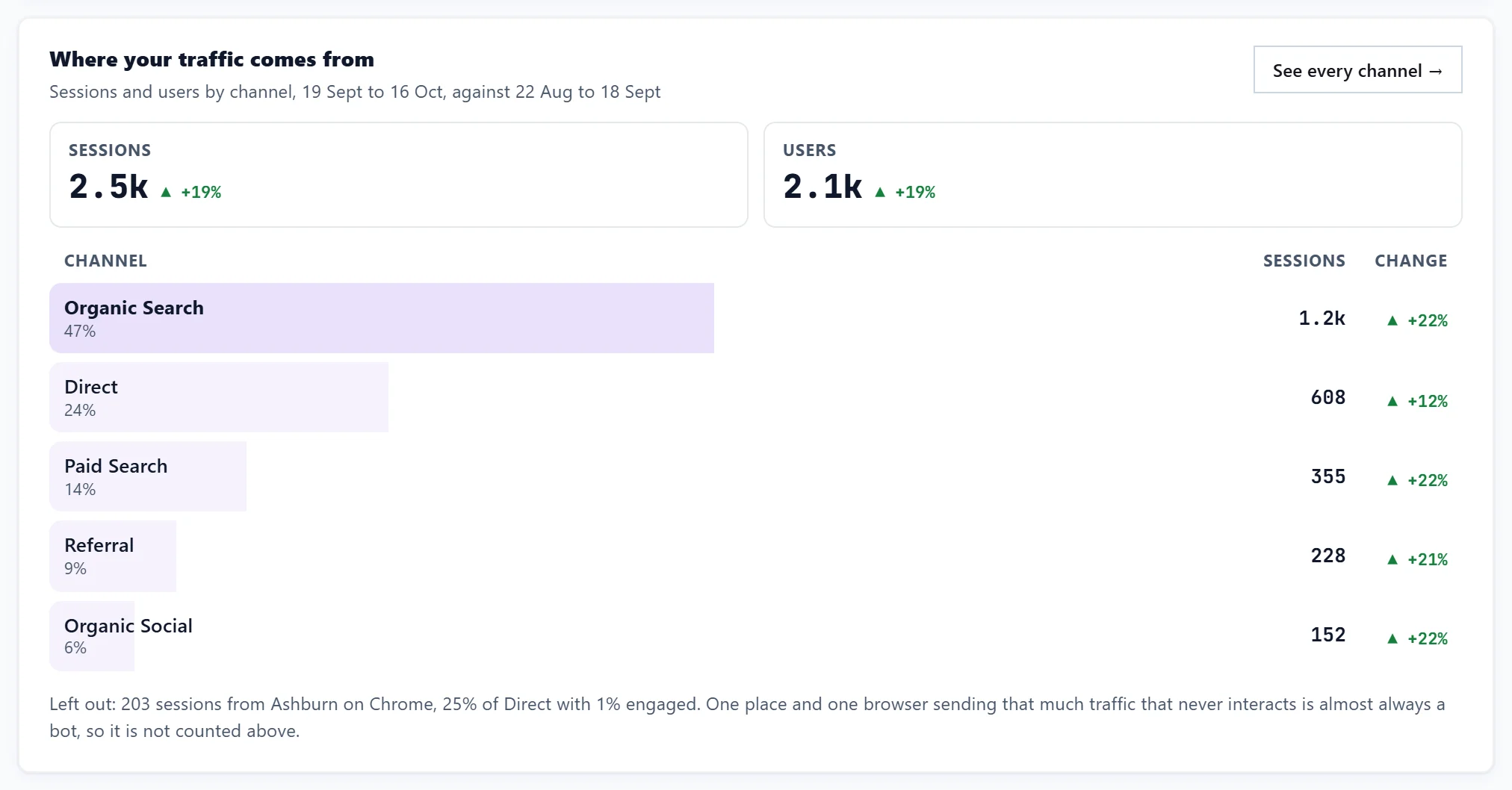
Visits in the last 28 days by channel, such as Organic Search, Direct and Referral, against the period before. Obvious bot traffic is taken out of Direct and named. Shows once Google Analytics is connected with a property chosen. See connect Google Analytics.
Your search history
We keep a weekly copy of your Search Console data from the day you connect, and never delete it. Google keeps about 16 months. This card shows how much history you hold, including weeks Google no longer has.
Appearances in AI answers
Google and Bing do not offer their AI answer reports through an API, so this card explains how to export each report and import it here. See import your Google AI report.
Questions people ask
Why do I not see some of these cards?
Watch mode, Quick wins, Why traffic moved and the history card only appear when there is something to show. Where your traffic comes from needs Google Analytics. Most others need Search Console. See no keyword data yet.