How do I plan and write blog posts in UtilitySEO?
On this page
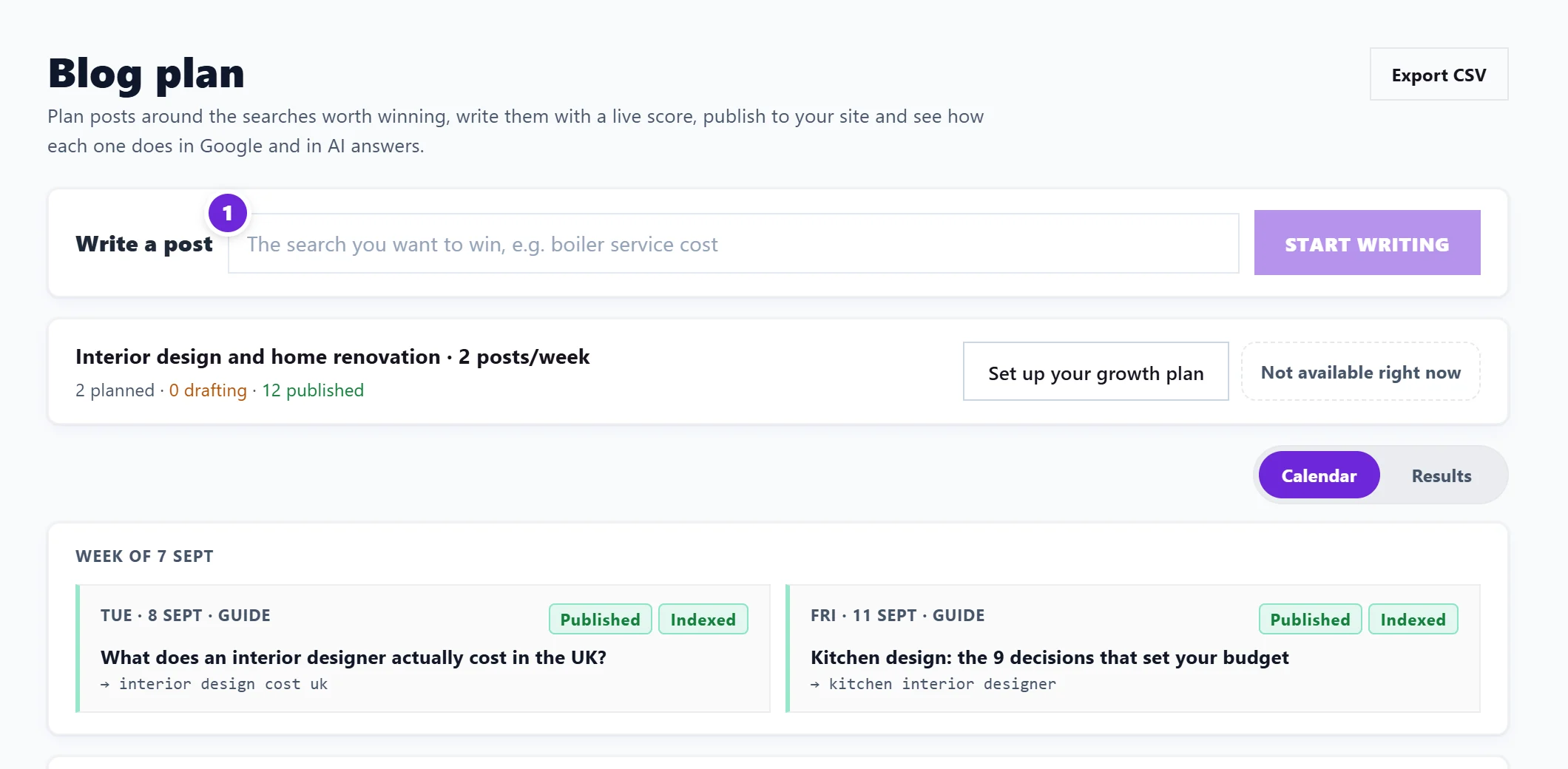
Open Content, then Blog Plan. Type the search you want to win into Write a post and press Start writing, or set up a growth plan and work through the calendar it fills. Each post opens in the Writer and goes through four steps: Outline, Draft, Publish and Track. The outline is free, a full draft uses 1 Growth blog, and nothing is published without your say-so unless you switch on autopilot. Writing is on Entrepreneur and Enterprise.
Set up your growth plan
Press Set up your growth plan to tell it what you want more of: the goal, short or long searches, whether your customers are in one area or anywhere, and the searches to focus on, ranked by how much each could bring you. Those searches become posts on the calendar. Change growth plan later keeps the posts you already have. See set up a growth plan.

The calendar and the Results board are explained in the blog calendar and Results.
Write a post
- Start: type a search into Write a post and press Start writing, or open a post from the calendar.
- Outline: press Write the outline for me. It plans the title, the headings, the searches each heading should win and the FAQs. Edit anything; the Outline score updates as you go. See write a blog outline.
- Draft: press Write the draft. It is written section by section, then becomes an editor that saves as you type. Select text and use Improve to rewrite just that part. See write and edit the draft.
- Publish: send it to your connected website as a draft (you press publish there) or live, or copy the HTML. See publish to your website.
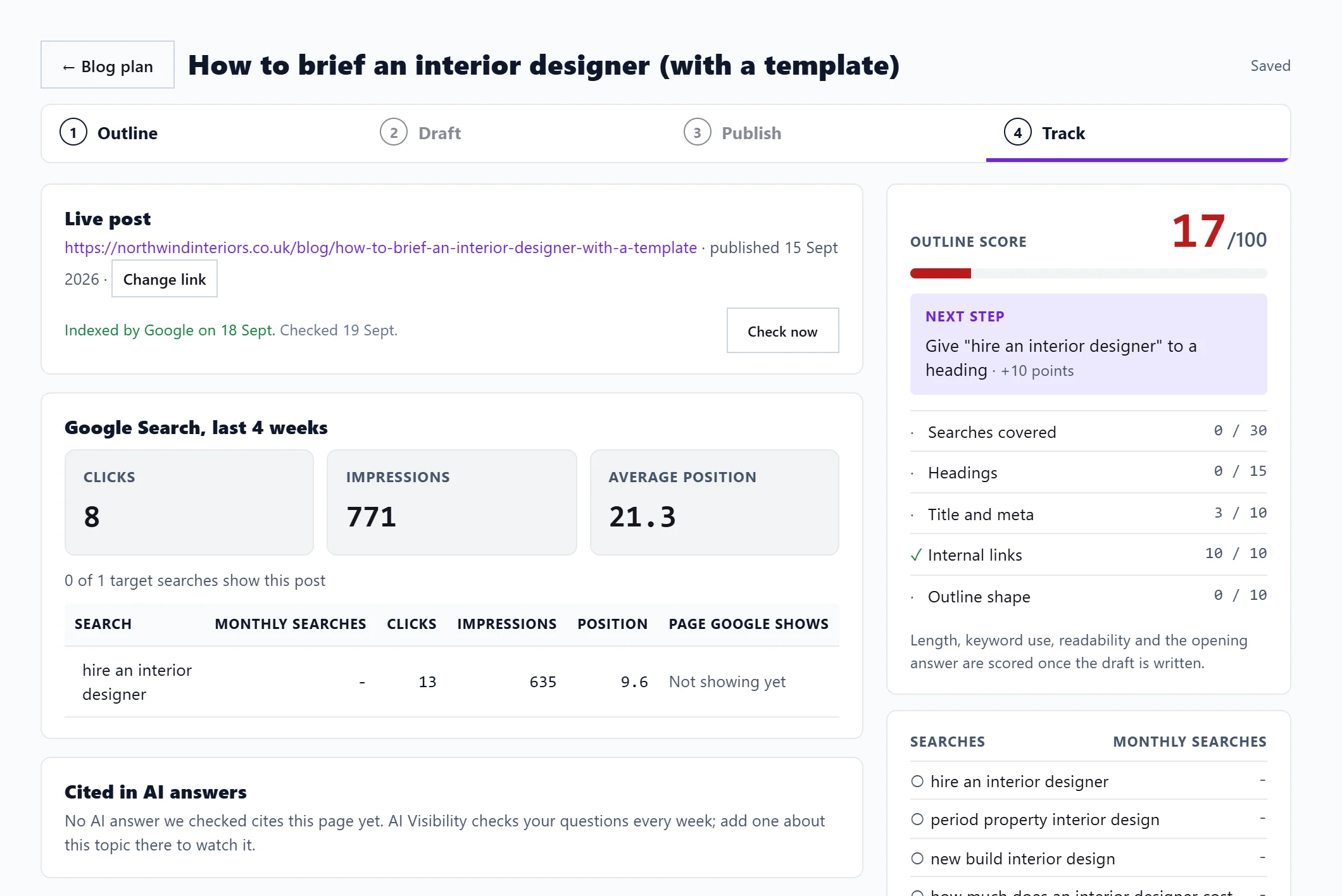
- Track: once it is live, add the published link and press Start tracking. The post then shows whether Google has indexed it, its clicks, impressions and position, and AI answers that cite it. See track a published post.
What it costs
| Action | Uses |
|---|---|
| Write the outline, or rewrite it | Free (Entrepreneur and Enterprise) |
| Write the draft, or rewrite the whole draft | 1 Growth blog |
| Improve the selected text | 1 AI use |
| Suggest more ideas for the calendar | 1 AI use |
Growth blogs are 20 a month on Entrepreneur and 100 a month on Enterprise, across all your projects. If a draft fails or you stop it, the Growth blog is given back. Minimum has no AI writing: you can plan posts, but the outline and draft buttons show a lock. See Growth blogs and AI uses.
Autopilot
With a website connected, autopilot writes each planned post on its day and sends it to your website, as a draft (Draft to CMS) or live (Publish live). See blog autopilot and images.
Questions people ask
Do I have to set up a growth plan first?
No. Type a search into Write a post and start straight away. The growth plan only fills the calendar for you.
My blog plan will not load. Is my work lost?
No. Your plan and posts are safe. Press Try again.