How do I make a one-off SEO report for a client or my team?
On this page
Open Growth, then Reports, and find Make a report. Give it a title if you like, tick what goes in under What goes in, choose the branding and press Make the report. It opens ready to print: choose Save as PDF in the print window. Every report you make is kept under Past reports, so you can open it again or send it on. Making reports uses no AI uses.
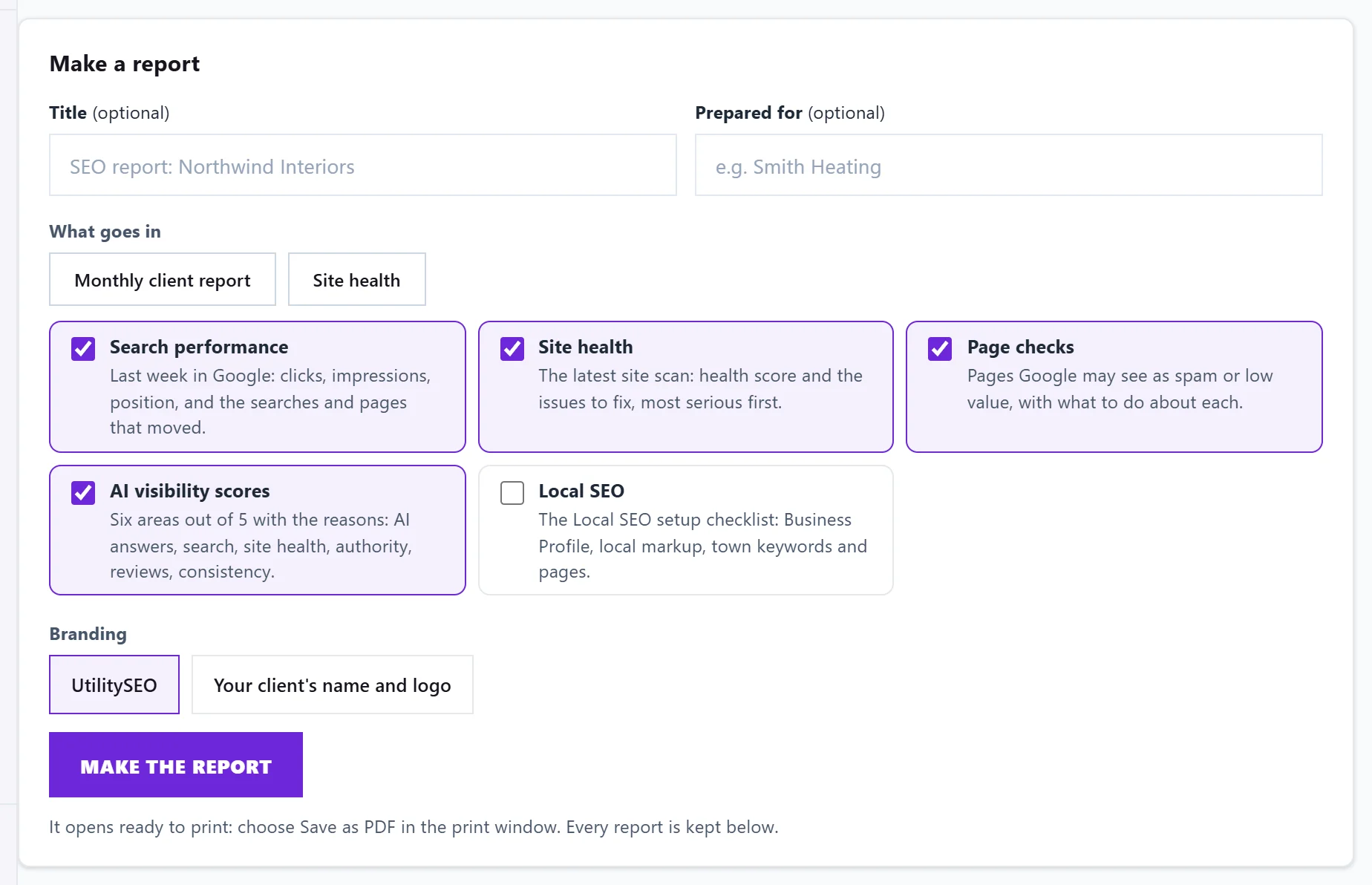
Make a report
- Open Growth, then Reports.
- Under Make a report, add a Title (optional) and who it is Prepared for (optional).
- Under What goes in, press a preset or tick sections yourself.
- Under Branding, choose UtilitySEO (or your agency, if you have set up white-label) or, on Enterprise, Your client's name and logo.
- Press Make the report. It takes a few seconds while each section is gathered.
If your browser blocks pop-ups, the report is downloaded as a file instead; open it and print to PDF.
What can go in
| Section | What it holds |
|---|---|
| Search performance | Last week in Google: clicks, impressions, position, and the searches and pages that moved |
| Site health | Your latest site scan: health score and the issues to fix, most serious first |
| Page checks | Pages Google may see as spam or low value, with what to do about each |
| AI visibility scores | Six areas scored out of 5 with the reasons: AI answers, search, site health, authority, reviews and consistency |
| Local SEO | The Local SEO setup checklist: Business Profile, local markup, town keywords and pages |
Presets: Monthly client report ticks search performance, site health, page checks and AI visibility scores; Site health ticks site health and page checks.
A section with no data, for example search performance before Search Console is connected, says so in the report rather than being left out silently.
Your client's branding
On Enterprise, Your client's name and logo puts the client on the report: Client name on the report, a Logo (PNG, JPEG or WebP, up to 300 KB) and an Accent colour. On other plans the option shows (Enterprise). To brand reports with your own agency instead, see put your branding on reports.
Past reports
Every report is saved exactly as it was built, with its date, who it was for and whether it carries client branding. Open prints it again; Delete removes it for good.
Other reports on this page
- Weekly report, with Send it to someone else and Client link: see weekly reports and client links.
- AI Visibility audit: see the AI Visibility audit.
Questions people ask
Can I edit a report after making it?
No. Make a new one with the sections you want. Past reports stay as they were built.
Can I export the data instead?
Yes, as CSV from most tables. See export to CSV.