How do I follow my SEO plan and see what moved?
On this page
Open Track, then Plan. Your plan opens on its weeks, with the current week marked This week. Tick each task when it is done, press Show the steps for exactly what to do, and read Before and Now on each task to see what moved. Send to my to-do list adds every task with its due date, and Download PDF prints the plan.
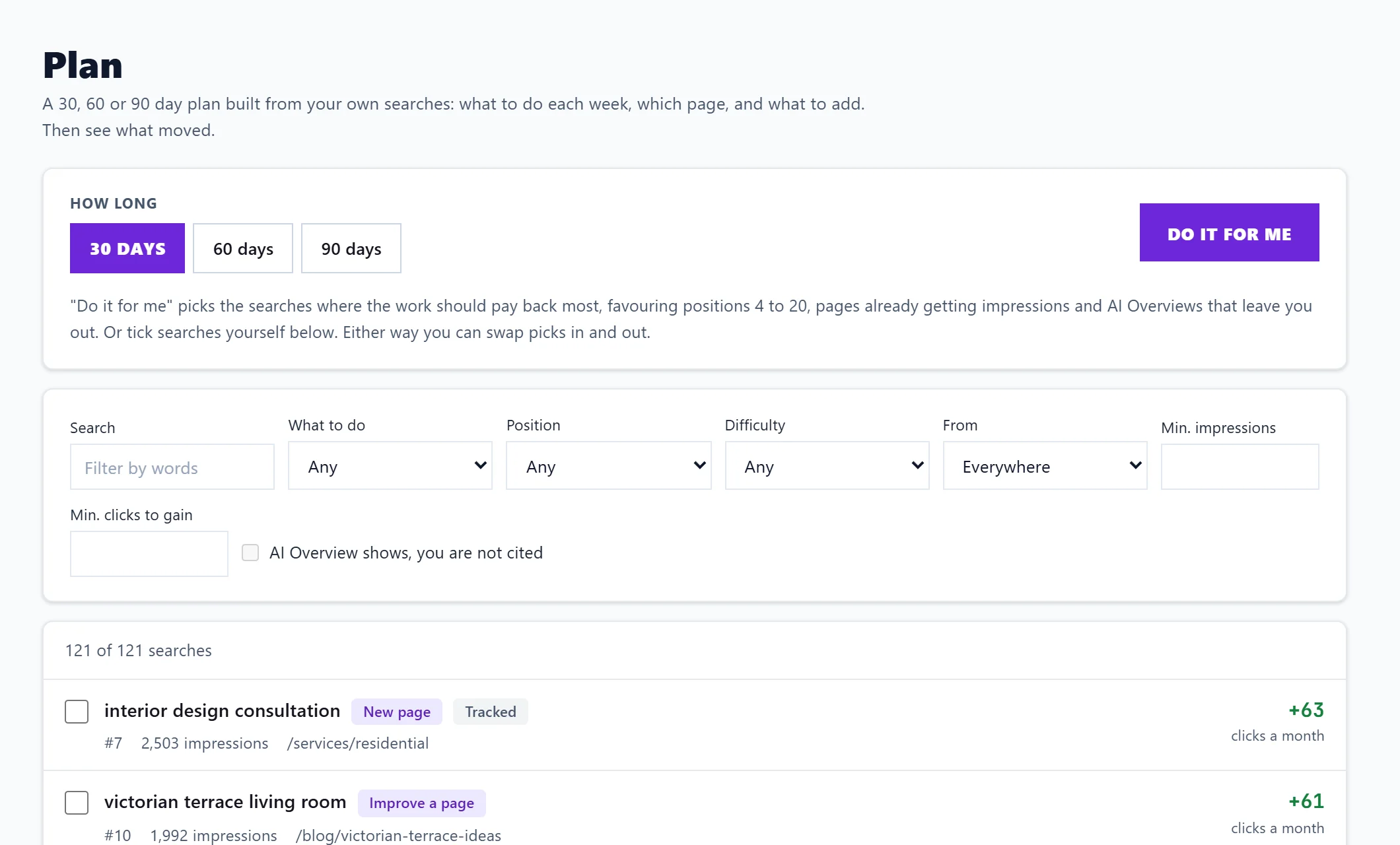
The top of the plan
- How long the plan is and when it started, which week you are in, and how many tasks are done.
- What has moved since the plan started, for example "3 moved up, 1 now showing", and the change in clicks a week on the searches we could measure.
- Estimated gain: about how many clicks a month the plan could bring. Tasks with no estimate are not counted.
Buttons:
- Send to my to-do list (or Update my to-do list): every task with its due date.
- Download PDF: opens a printable copy; choose Save as PDF in the print window.
- Build a new plan: opens the builder. See build a 30, 60 or 90 day plan.
- Delete plan: removes the plan. Tasks already on your to-do list stay there.
- Earlier plans: switch to an older plan when you have more than one.
Each task
A task names the job and the search, for example Improve this page or Make a new page, with the clicks a month it could gain and Why it was picked. Show the steps lists what to do, plus a suggested address and title for a new page and the pages to link from with the words to use. Buttons open the matching Fix guide, and a new page can go straight into your blog with Add to the blog plan.
Before and after
Each task shows Before (the four recorded weeks before the plan) and Now (the weeks since): position and clicks a week, with a label such as Moved up, Moved down, No change yet, Now showing or Waiting for data.
Our weekly record is taken on Thursdays, so nothing can be compared until the first week after the plan started has been recorded. Changes usually show in Search Console two to four weeks after the work is done.
The Monday check-in
Each Monday a check-in in the bell says what is due this week and what moved. The same check-in comes by email; turn it off with SEO plan check-in in Settings, Notifications. See choose your emails.
Questions people ask
Can I change the plan once it is made?
Build a new plan with different searches. The old one stays under Earlier plans until you delete it.
Does ticking a task change my website?
No. Ticking only marks it done in UtilitySEO. You make the changes on your website.