How do weekly reports and client report links work?
On this page
The weekly report is a Monday morning email with your site's search performance for the week before: clicks, impressions and position against the previous week, what gained and lost the most, and what we recommend next. Turn it on for yourself in Settings, then Notifications. To share it with a client who has no account, add them as a recipient or send them a private client report link from Growth, then Reports.
Turn on your own copy
- Open Settings, then Notifications.
- Under Reports and summaries, switch on Weekly report.
- To get it for some projects only, press Choose projects and tick the ones you want.
Each person on a team chooses their own copy. The report is built from a snapshot taken at the end of each week, so the first one arrives after the project has been connected to Search Console (Google's free report of how your site shows in search) for a full week.
See the report in the app
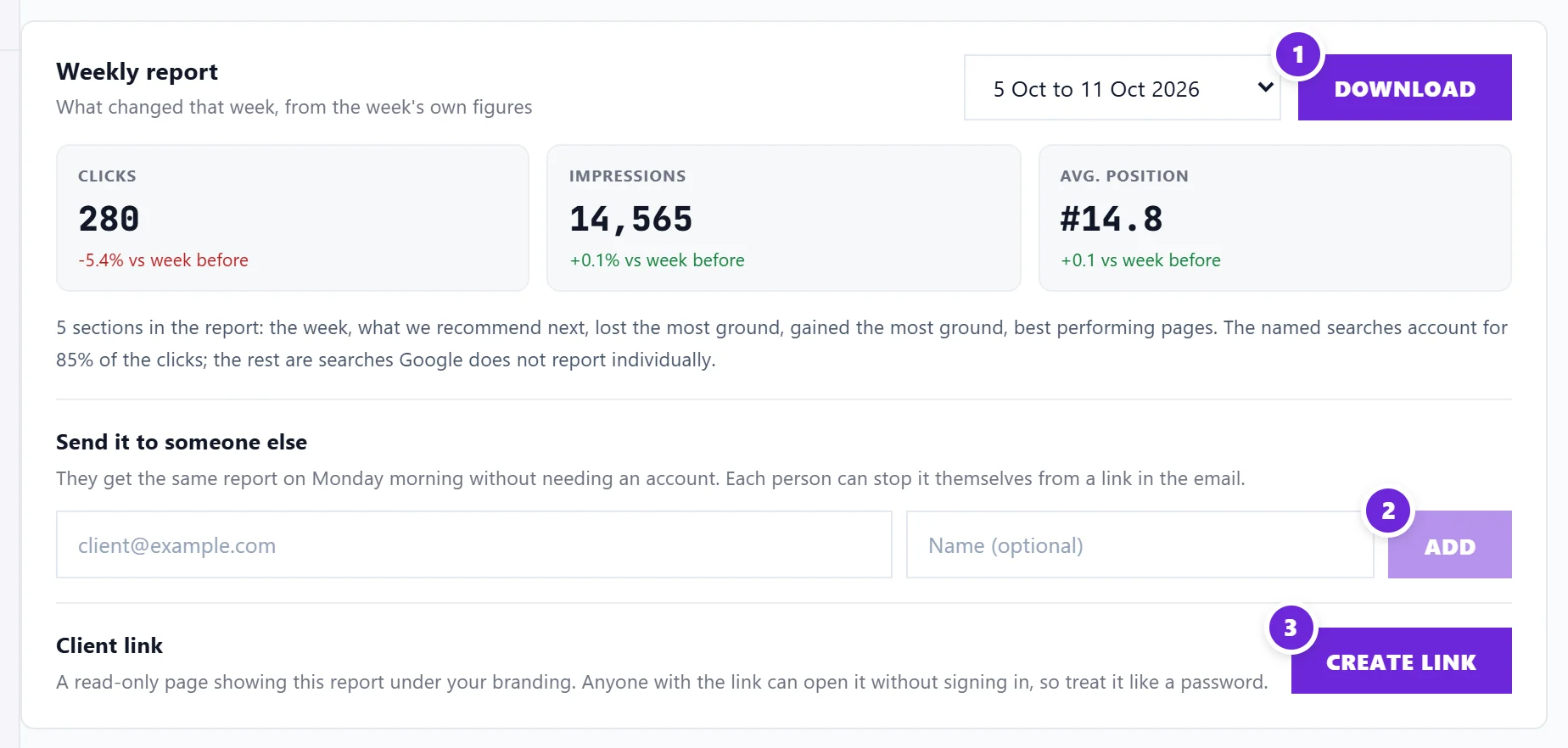
Open the project, then Growth, then Reports. The Weekly report card shows the week you pick from the list of weeks: clicks, impressions and average position against the week before. Download opens a printable copy (choose Save as PDF in the print window). The report opens with What we recommend next: the biggest loss to win back, the best search close to page one, the next topic to write about and the most urgent open fixes. Then come the searches that lost and gained the most ground, the best performing pages, new searches you appeared for and About these numbers.
Send it to a client every Monday
On the same card, under Send it to someone else:
- Type their Recipient email and, if you like, a Name (optional).
- Press Add. They get the next Monday report. The list shows Sent or Not sent yet for each person, and Remove takes them off from the next Monday.
A project can send to 10 people. They do not need an account, and each one can stop it from a link in the email. Their copy keeps arriving even if you turn your own copy off.
Share a private client report link
Under Client link, press Create link, then Copy and send it. Your client opens a read-only report page, with Download as PDF, without signing in. The card shows whether the link has been opened, for example Opened 3 times or Not opened yet.
Anyone with the link can open it, so treat it like a password. Replace with a new link stops the old one working, and Revoke, then Revoke it, stops it altogether.
Your branding on Enterprise
On Enterprise, set up White-label reports in Settings, then Billing. Client copies of the report and the client report page then carry your agency's name, logo and colour instead of ours. Client-facing reports never contain links into your UtilitySEO account. See put your branding on reports.
Questions people ask
Who can add recipients or create a client link?
The account owner and team members with Full Access. View Only and Billing members can read the report but cannot share it.
Why has my weekly report not arrived?
Most often the project has not had a full week of Search Console data yet, or the email is switched off or paused in Settings, then Notifications. See emails not arriving.
Can I make a one-off report instead?
Yes. On Growth, then Reports, tick what goes in under What goes in and press Make the report. It opens ready to print or save as a PDF, and every report you make is kept under Past reports. See make a one-off report.