How do I open an earlier scan or compare scans?
On this page
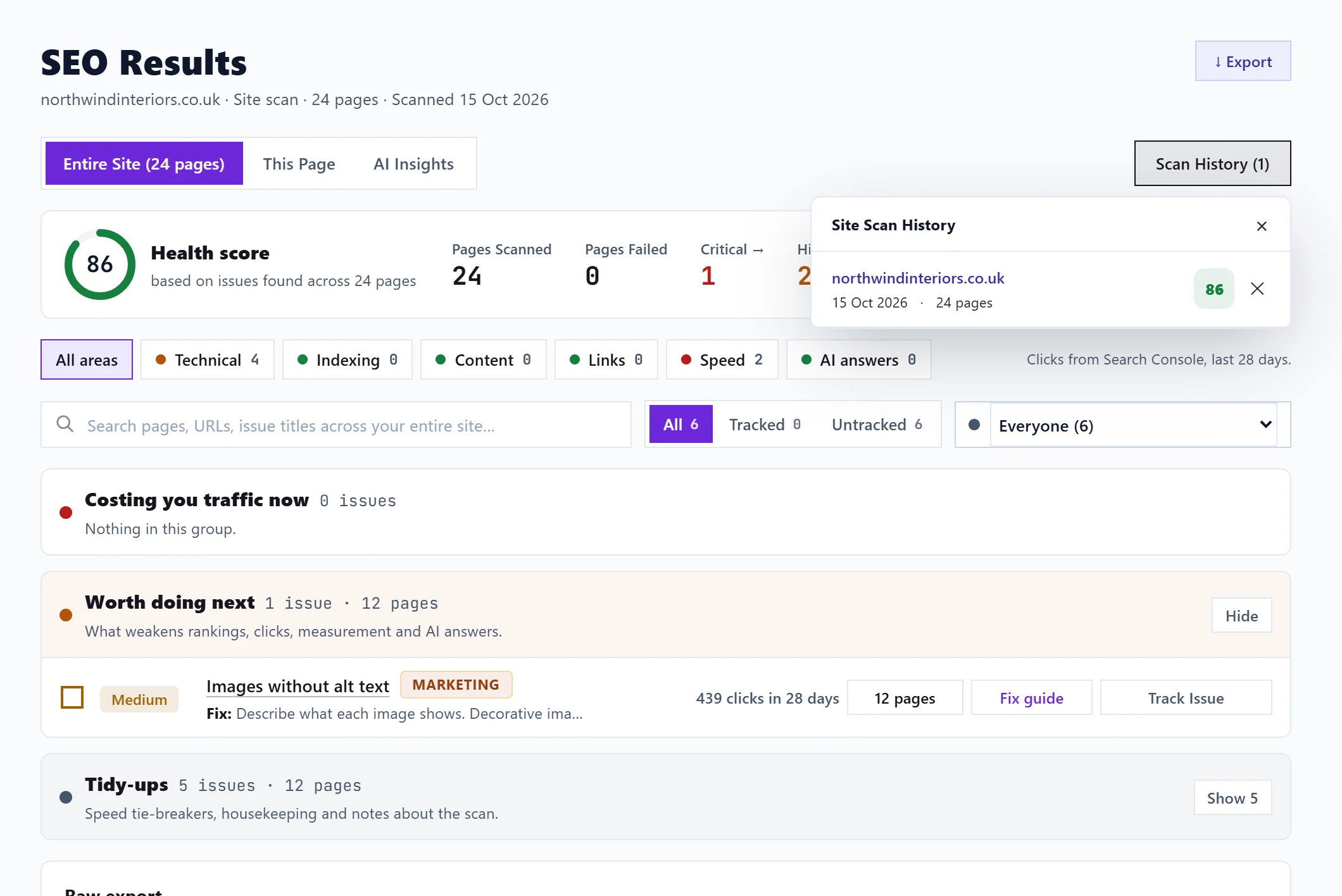
Every scan you run is kept. On Audit, SEO Results, press Scan History to open an earlier whole-site scan or single-page check, and its results replace the ones on screen. To see what changed between two scans, use See what changed on SEO Results, the Last site scan card on New Scan, or Since your last scan on Site Health.
Open an earlier scan
On SEO Results there are two history buttons:
- Scan History (N), beside the view switch on the Entire Site view, lists your 20 most recent whole-site scans in Site Scan History: the address, the date, how many pages it read, any that failed, and the score. Click one to open it.
- Scan History, at the top of the page, lists your single-page checks with the address, date, time and score.
You can also open a scan from Recent scans on the New Scan page. See the New Scan page.
Delete a scan
In Site Scan History, the cross beside a scan deletes it. Deleting cannot be undone, so export it first if you might want it later. See export scan results.
Compare with the scan before
- See what changed on SEO Results lists Fixed since last scan and New since last scan.
- Last site scan on New Scan shows the score change and how many issues were fixed and are new.
- Since your last scan on Site Health compares the two scans over the pages both covered, lists New issues and Fixed, and leaves page speed out because it moves between runs on its own. Show all changes lists everything. See the Site Health page.
Why a comparison says "not comparable"
A scan of 100 pages and a scan of 2,000 pages find different things, so the score change is not like for like. When two scans read very different numbers of pages, the app says so and does not compare the score. If two scans had no pages in common at all, for example after a site restructure, there is nothing to compare. Run scans of a similar size to compare them fairly.
Questions people ask
How far back does the history go?
The history lists your 20 most recent site scans. What each scan recorded about your pages stays in Page History. If your plan ends, scan data is kept for 30 days and then removed.
Can I see how one page changed over time?
Yes. Site Audit, Page History shows what changed on each page across your scans, and what happened to its searches afterwards. See page history.