How do I export everything a site scan found?
On this page
Open the scan's results in Audit, SEO Results, and find the Raw export card. Export all findings downloads one row for each finding on each page, and Export all pages downloads one row for each page the scan read. Each comes as CSV, for a spreadsheet, or JSON, for your own tools.
Download the export
- Open your project and go to Audit, then SEO Results.
- Make sure the scan you want is the one shown.
- Scroll to Raw export.
- Beside Export all findings or Export all pages, press CSV or JSON.
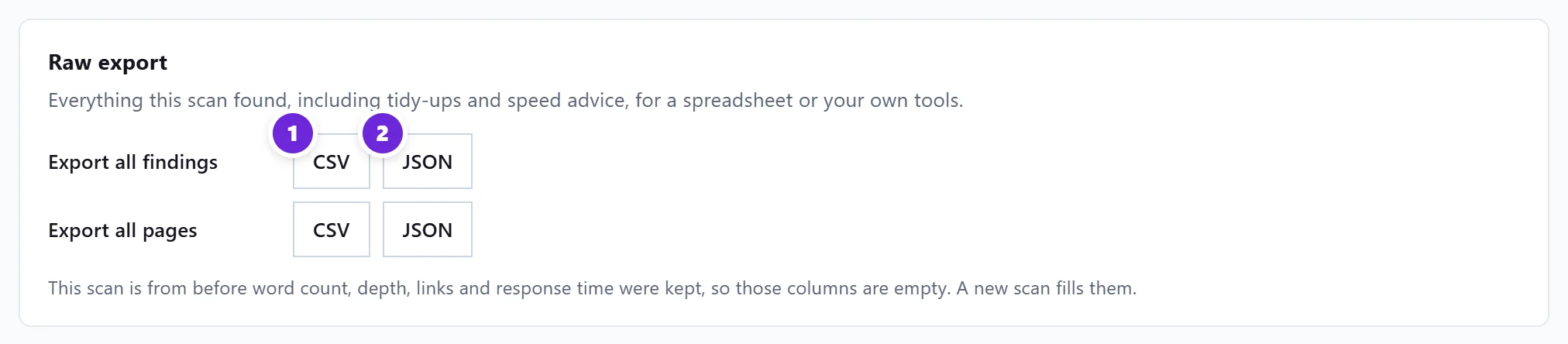
The file downloads straight away. A line under the buttons says how many rows were saved and the file name.
What is in each file
Export all findings has every finding the scan made, including tidy-ups and speed advice that do not appear in Fix these first. There is one row per finding and page.
A finding names up to 50 pages in the app. Where a finding stored only 50 of its pages, the rows say so in the Pages named, Pages in total and Note columns, so you know the full count.
Export all pages has one row per page the scan read, with:
- the status code (for example 200 for a working page, 404 for not found),
- the title, meta description length and main heading,
- the canonical address and whether Google may index the page,
- the word count, how many clicks from the home page it is, internal links in and out, and response time.
Questions people ask
Some columns in my export are empty. Why?
Word count, depth, links and response time were added to scans on 16 October 2026. Scans from before then leave those columns empty, and the card says so. Run a new scan to fill them.
Can I open the CSV in Excel or Google Sheets?
Yes. The CSV opens in Excel, Google Sheets and Numbers, with accents and symbols kept.
Is there a way to get this without the app?
Yes. The same rows are available through our API for your own software. The project owner, or a member with full access, creates a key in Project settings, on the API keys tab.
Can I export my keywords as well?
Yes, most tables in the app have their own export. See export to CSV.