How do I run a site scan?
On this page
Choose Audit in the sidebar, stay on the New Scan tab, pick Entire Site, check your address, choose how many pages to read and press Scan Site. The scan reads the pages it can reach from your sitemap and internal links, up to the limit you chose, tests speed on a sample of 25 pages, and lists what it found in SEO Results.
Run a scan
- Open your project, choose Audit in the sidebar and make sure the New Scan tab is open.
- Pick Entire Site. (Single URL, the other choice, checks one page with Google's speed test instead. See check a single page.)
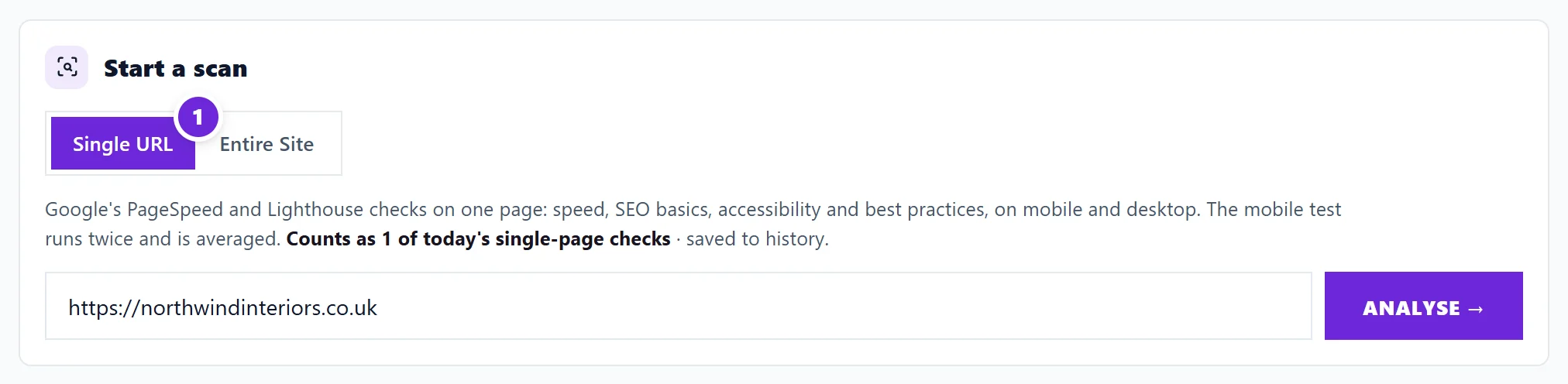
- Check the address, then choose under How many pages to crawl. The list offers the sizes your plan allows, from 100 pages up. Under the box, the app says roughly how long a scan of that size takes.
- Press Scan Site.
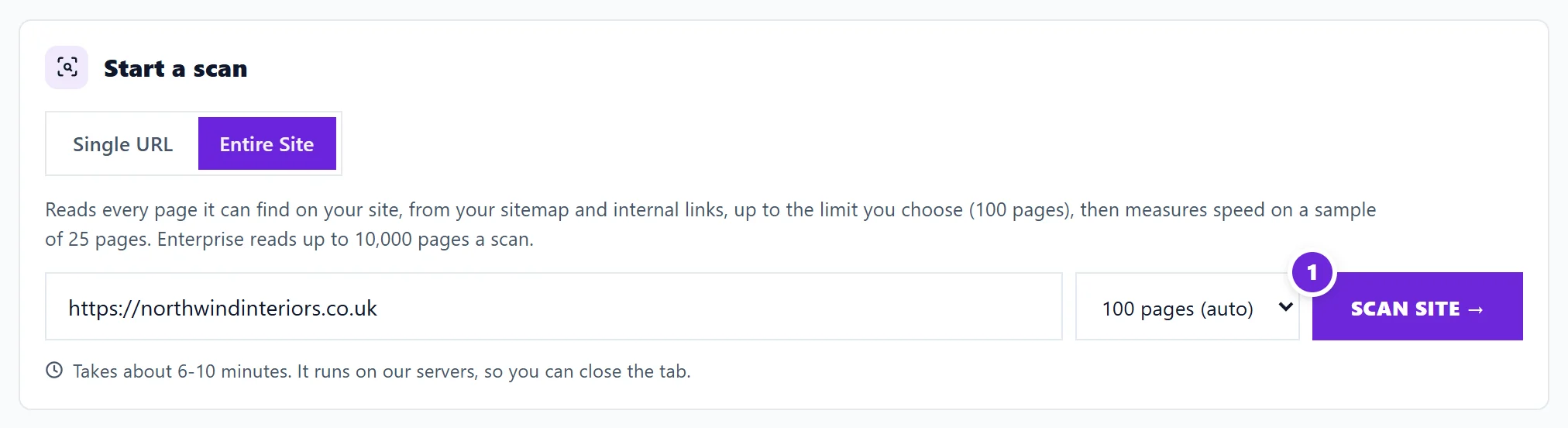
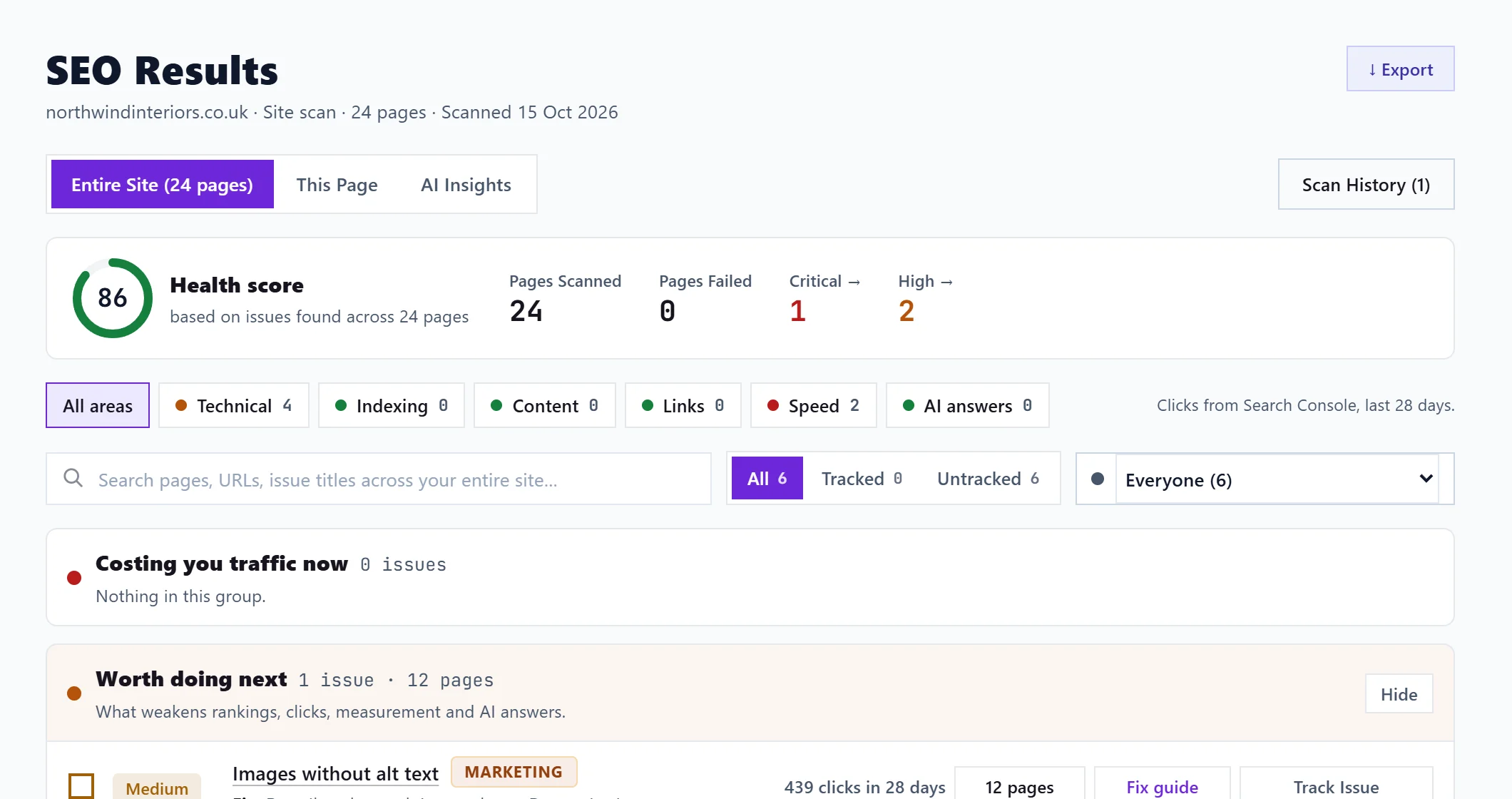
The scan runs on our servers, so you can close the tab. Progress shows step by step: finding pages, checking every page, measuring speed on up to 25 sample pages, then building your report. Stop ends the scan early. When it is done the results open in SEO Results, and the scan is kept in your history.
Your plan's allowance
| Plan | Site scans a day | Pages per scan |
|---|---|---|
| Minimum | 3 | up to 500 |
| Entrepreneur | 5 | up to 2,000 |
| Enterprise | Unlimited (fair use) | up to 10,000 |
The day resets at midnight UK time. A scan that failed does not count. Site scans left today, at the top of New Scan, shows how many you have left. Once a trial has ended without a plan, Entire Site scans stop until you choose one.
What the scan checks
- Things that stop a page counting in Google, such as noindex tags (a line telling Google to leave the page out), error pages, broken canonical tags (the tag that names a page's main address) and robots.txt rules.
- Things that cost enquiries or measurement, such as analytics missing or installed twice, or links to a test address.
- Titles, descriptions, headings, thin or copied pages and internal links.
- Whether AI assistants can read your pages: AI crawlers blocked, llms.txt, dates and authors, and pages that are empty without JavaScript.
- Speed and accessibility, on the 25 sample pages.
It checks the pages it can reach, up to your page limit. It does not see pages nothing links to and your sitemap leaves out, and it cannot promise to find every problem a site might have.
When to scan
Scans are never scheduled. We run your first one, of up to 100 pages, when you add the website; after that, run one whenever you have changed your site. To check a single fix without a whole new scan, track the issue and use Re-check this page on your Progress list. See mark issues fixed and re-check them.
Questions people ask
The results say "Incomplete scan". What happened?
The scan stopped before it read every page it found, so the score covers only the pages it finished. The banner says how many. Run the scan again, with a smaller page count if it keeps happening. See scan stuck or failed.
Why did it read fewer pages than my site has?
It reads what it can reach from your sitemap and internal links, up to the limit you picked. Pages with no links to them and not in your sitemap are not found. Pages blocked or redirected elsewhere are not read as pages.
Does scanning slow my website down?
The scan reads only a few pages at a time, much like a search engine does, and identifies itself as UtilitySEO-Bot. Most sites notice nothing.