How do I use the Blog prompt generator?
On this page
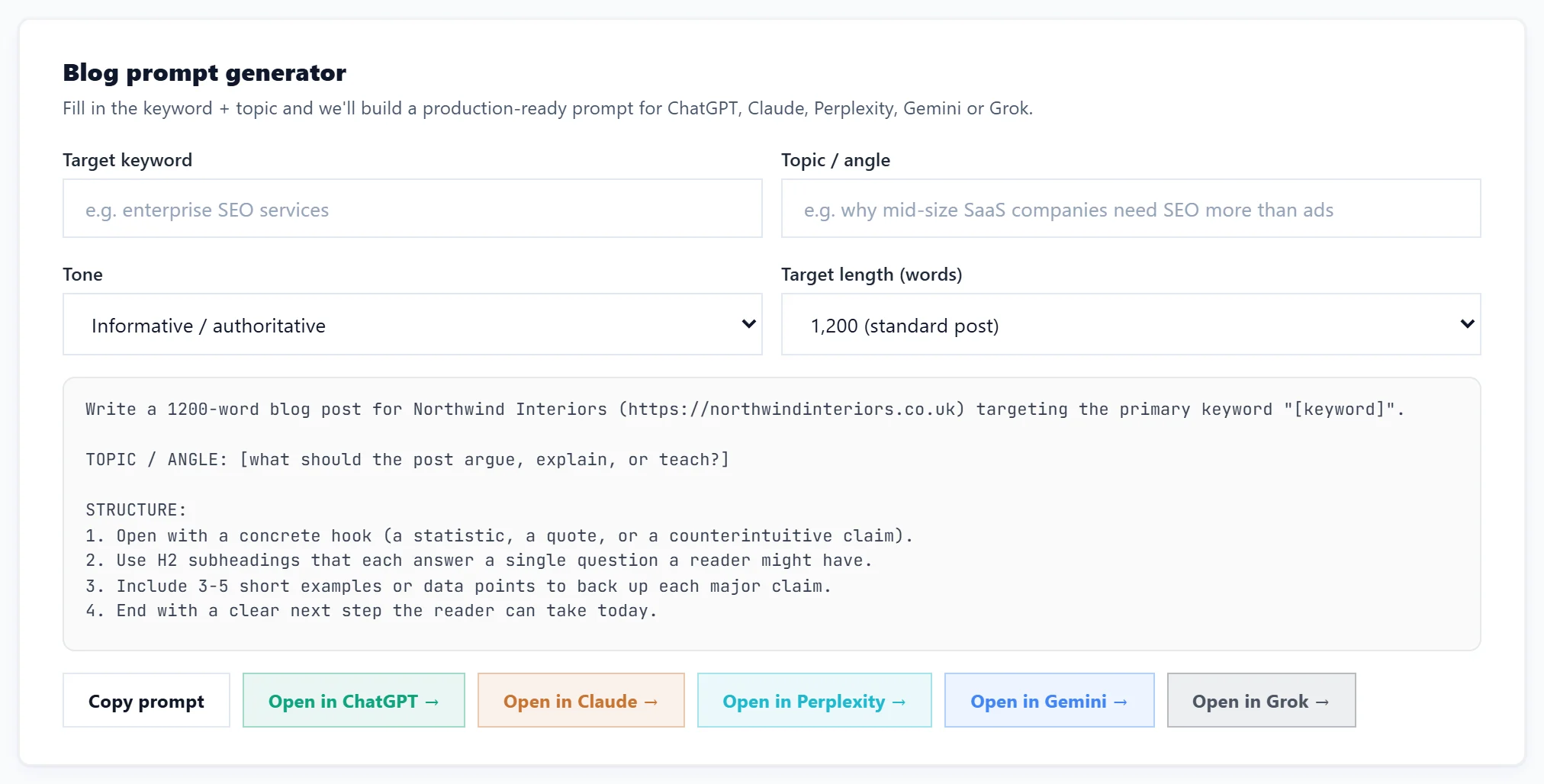
The Blog prompt generator, at the bottom of Growth, Growth Engine, builds a complete writing prompt for a blog post that you paste into your own AI assistant. Fill in the target keyword and topic, pick a tone and length, then press Copy prompt or one of the Open in buttons for ChatGPT, Claude, Perplexity, Gemini or Grok. It is free and uses no AI uses, because the writing happens in your own AI account.
Build a prompt
- Open Growth, then Growth Engine, and scroll to Blog prompt generator.
- Target keyword: the search you want the post to rank for.
- Topic / angle: what the post argues or covers, for example "why small firms need SEO more than ads".
- Tone: Informative / authoritative, Casual / conversational, Persuasive / sales-aware or Technical / specialist.
- Target length (words): 600 (short reference), 1,200 (standard post), 2,000 (long-form) or 3,000 (pillar article).
- Press Copy prompt and paste it into your AI assistant, or press Open in ChatGPT (or Claude, Perplexity, Gemini or Grok) to open it there.
When to use it
- You are on Minimum, which has no AI writing in the app, or you have used this month's Growth blogs.
- You prefer to write with your own AI subscription.
- The Growth Engine's You have momentum card suggests a supporting post with Generate blog prompt.
Read what comes back carefully before you publish: check facts, prices and claims, and add your own experience.
Other ways to write a post
- The Blog Plan's Writer writes and scores the post for you, using Growth blogs. See plan and write blog posts.
- Inside the Writer, Copy the prompt for another AI gives a prompt built from that post's own outline. See write and edit the draft.
- The Claude or ChatGPT connector lets your own AI read your UtilitySEO data directly.
Questions people ask
Does UtilitySEO see what my AI writes?
No. The prompt is copied to your clipboard or opened in the AI's own website. Nothing comes back to us.
The AI opened but my prompt is not there. What do I do?
The Open in buttons pass the prompt in the link, and you may need to be signed in to that AI first. If it does not appear, press Copy prompt and paste it in.