How do I use Site Audit and the Full Audit?
On this page
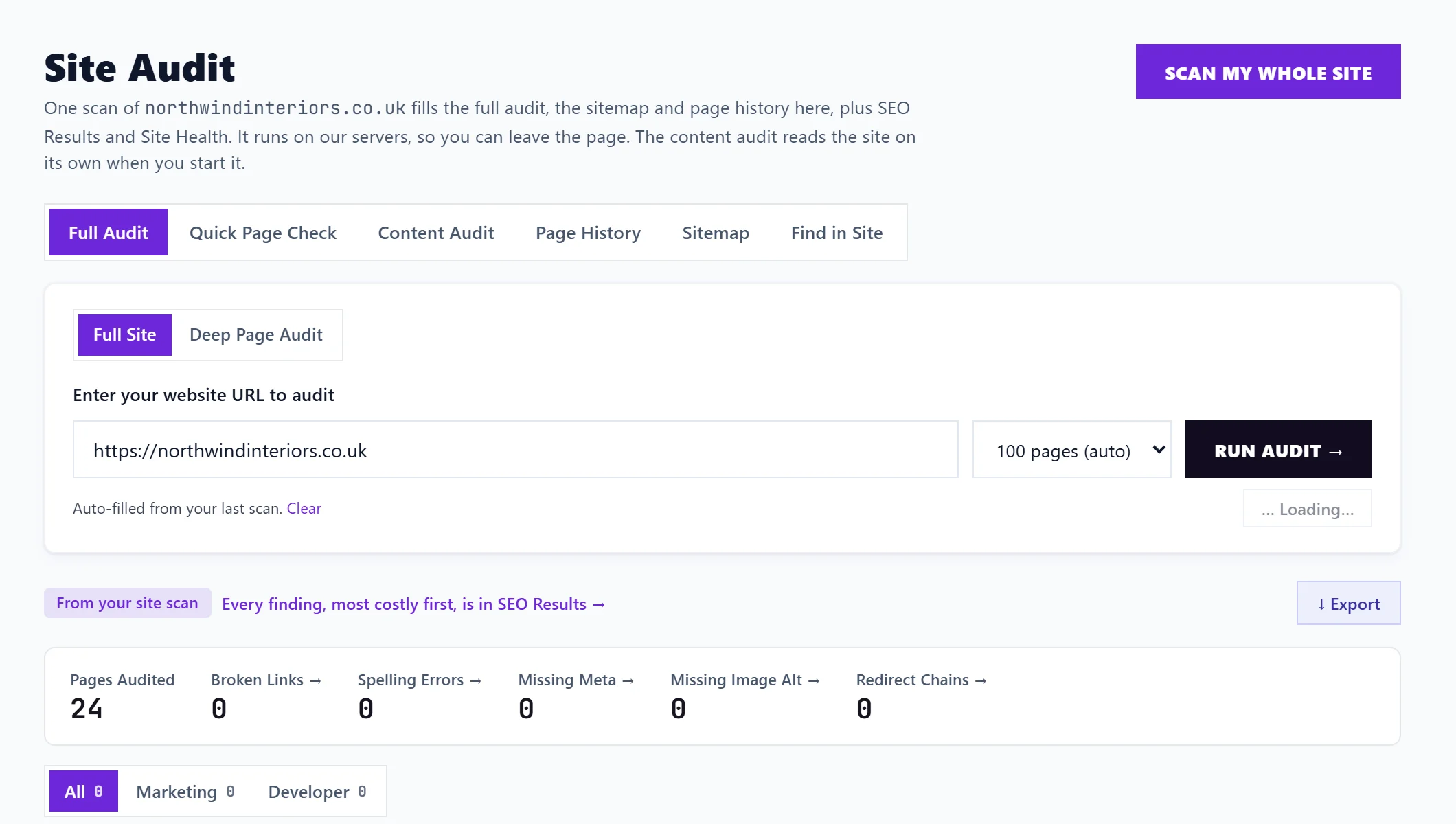
Site Audit, a tab of Audit, holds extra audits and tools that look at your pages in a different way from the site scan. Its first view, Full Audit, crawls your site, or checks one page in depth, for broken links, spelling mistakes, redirect chains, missing titles and descriptions, and images without alt text, and lists every problem by page so you can tick them off.
The Site Audit views
| View | What it does |
|---|---|
| Full Audit | Broken links, spelling, redirects, missing meta and alt text, for the whole site (Full Site) or one page (Deep Page Audit) |
| Quick Page Check | A fast check of one page without the speed test. See Quick Page Check |
| Content Audit | Titles, descriptions, headings, word counts and duplicates on every page. See Content Audit |
| Page History | What changed on each page, and what happened after. See page history |
| Sitemap | Your sitemap drawn as a map of your site. See the Site Audit sitemap |
| Find in Site | Find a word or phrase anywhere on your site. See Find in Site |
Scan my whole site, at the top, starts one site scan that fills the Full Audit, Sitemap and Page History, as well as SEO Results and Site Health. It runs on our servers, so you can leave the page. The Content Audit reads your site on its own when you start it.
Full Site
- Open Site Audit, Full Audit and choose Full Site.
- Your address is filled in. Choose How many pages to crawl, up to your plan's limit (500 on Minimum, 2,000 on Entrepreneur, 10,000 on Enterprise).
- Press Run Audit. It shows how many pages it is reading and for how long it has been running. Larger sites can take a while.
The results say where the pages came from (Via sitemap, Via crawl or From your site scan) and give a summary: Pages Audited, Broken Links, Missing Meta, Missing Alt, Spelling Issues, Redirect Chains, Open Issues and Fixed.
Below, problems are grouped by type, each with its page and detail:
- Click a type in the summary (Show only that type) to filter, and Show tasks for (All, Marketing or Developer) to split the work.
- Tick a problem to mark it fixed; it moves to Fixed Issues, where Undo brings it back.
- Track Issue adds it to your Progress list. See track issues and the Progress list.
- The export button downloads the list as a CSV file or a PDF report, with just the type you picked if you filtered.
- On Entrepreneur and Enterprise, AI suggestions writes prioritised improvements from the open problems (1 AI use).
History (N) lists your recent audits, with the date, pages and source; click one to open it or the cross to delete it.
Deep Page Audit
Choose Deep Page Audit, enter one page's address and press Scan Page. In up to 30 seconds it checks that page for broken links, spelling, redirect chains, meta tags and headings, and image alt text, and adds Google's speed test with Core Web Vitals on mobile and desktop, plus the real-visitor loading time over 28 days where Google has it. You get a page score, the number of issues and outbound links, and Re-scan. It is saved to your history. For a faster check without the speed test, use Quick Page Check.
Questions people ask
How is the Full Audit different from the site scan?
The site scan checks for what stops pages ranking and gives your health score. The Full Audit looks for practical faults a visitor would notice, such as broken links, spelling and redirect chains. Most findings appear in both places; SEO Results lists everything, most costly first.
Are the spelling checks always right?
They catch common misspellings. Names, brands and local words can be flagged by mistake, so tick those off as fixed.