What do I see when I open an issue from my scan?
On this page
Click an issue's title on SEO Results and it opens in a window with up to four tabs: What it is, How to fix it, Fix with AI and Where it is, which lists the pages it is on so you can tick each one off. Fix guide on the row opens the full step-by-step guide on its own.
What it is
What the problem is, in plain words, and why it matters for your site. Under it:
- The fix, in a line: the short version of what to do.
- Quick tip, where there is one.
- See the step-by-step fix, which moves to the next tab.
How to fix it
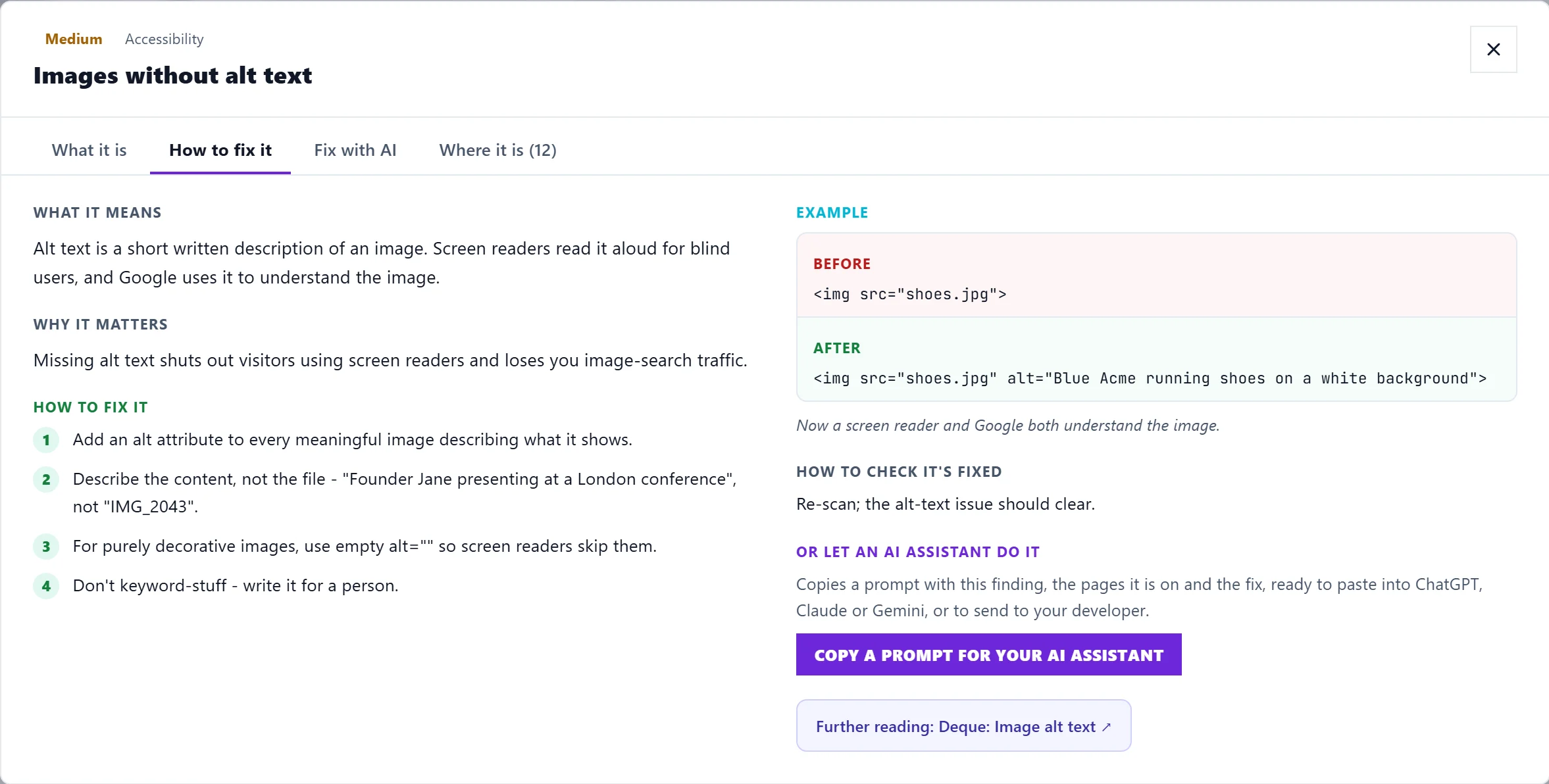
The fix guide for this kind of problem (shown when one exists): what it means, why it matters, the steps, a before and after example, and how to check it is fixed.
Fix with AI
On Entrepreneur and Enterprise, this reads the live page and writes a fix for that page, ready to paste. Review it before publishing. See fix with AI. Findings that cannot be fixed by a snippet, such as notes about the scan itself, do not have this tab.
Where it is
Every page the issue is on, under Pages with this issue (N), with how many you have fixed. Tick each page as you fix it: when every page is ticked, the whole issue is marked fixed. See mark issues fixed and re-check them.
For some issues the tab also names exactly what is wrong:
- Dead links, most linked first: the broken addresses, and how many of your pages link to each.
- Images to fix: the image files involved, for example ones missing alt text (a short description of the image for screen readers and search engines).
- Sentences to check: wording that looks out of date.
- Exact files causing this: the files or addresses behind the problem.
Long lists show the first entries and the total.
The fix guide
Fix guide on the row opens the UtilitySEO fix guide for that issue:
- What it means, Why it matters and How to fix it, step by step.
- Example, with Before and After.
- How to check it, so you know it worked.
- Or let an AI assistant do it: Copy a prompt for your AI assistant copies a ready-written request, with the finding, the pages it is on and the fix, to paste into ChatGPT, Claude or Gemini, or to send to your developer. This is free and does not use an AI use.
- Further reading, with a link to a trusted source where there is one.
Every guide is also on the Fix Guides tab. See the Fix Guides.
Questions people ask
Why does one issue say "Found on 40 pages" without saying what is wrong?
The details differ page by page. Open Where it is to see what was found on each page.
Is the fix guide written for my site?
The guide explains the problem in general. Where it is and Fix with AI are specific to your pages.