How do I connect Google Search Console?
On this page
Open Analytics, then Keywords, and press Connect Google Search Console. Sign in with the Google account that has your site in Search Console and allow access. We then pick the Search Console property that matches your project's website, and your keywords, clicks and positions appear.
Connecting Search Console works on every paid plan and during your trial.
What Search Console is
Search Console is Google's free report of how your site shows up in Google search: which searches you appear for, your position, how often people saw you (impressions) and how often they clicked. UtilitySEO reads it so the Keywords page, Opportunities, Not winning, the weekly email and much more can work from your real numbers.
Connect it
- Open your project.
- In the sidebar choose Analytics, then the Keywords tab.
- Press Connect Google Search Console.
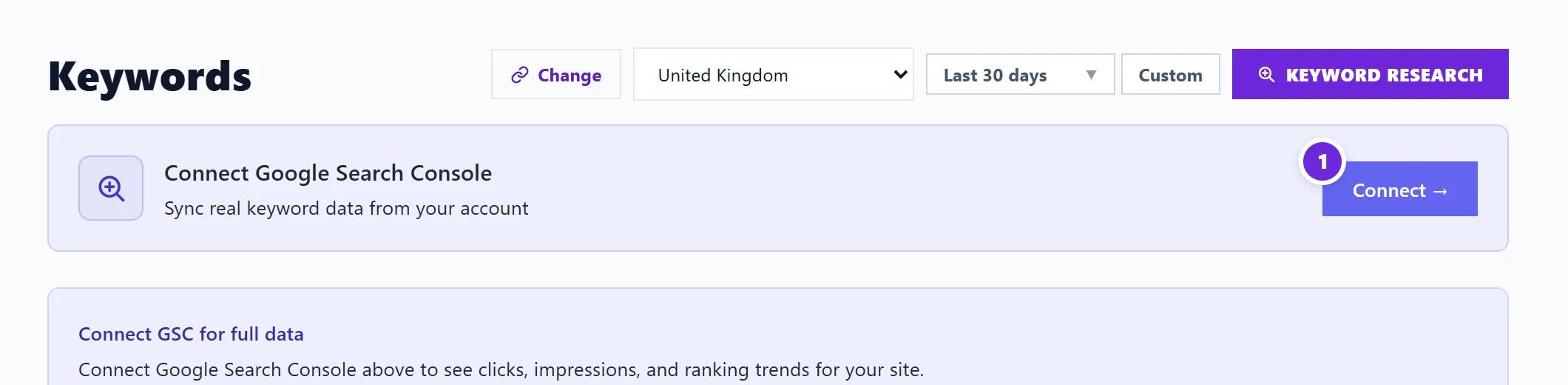
- Choose the Google account that has access to your site in Search Console.
- Google shows what we are asking for: read-only access to Search Console and Google Analytics. Press Continue (Google's button) to allow it.
- You come back to UtilitySEO. We choose the property whose address matches your project, and the Keywords page fills in.

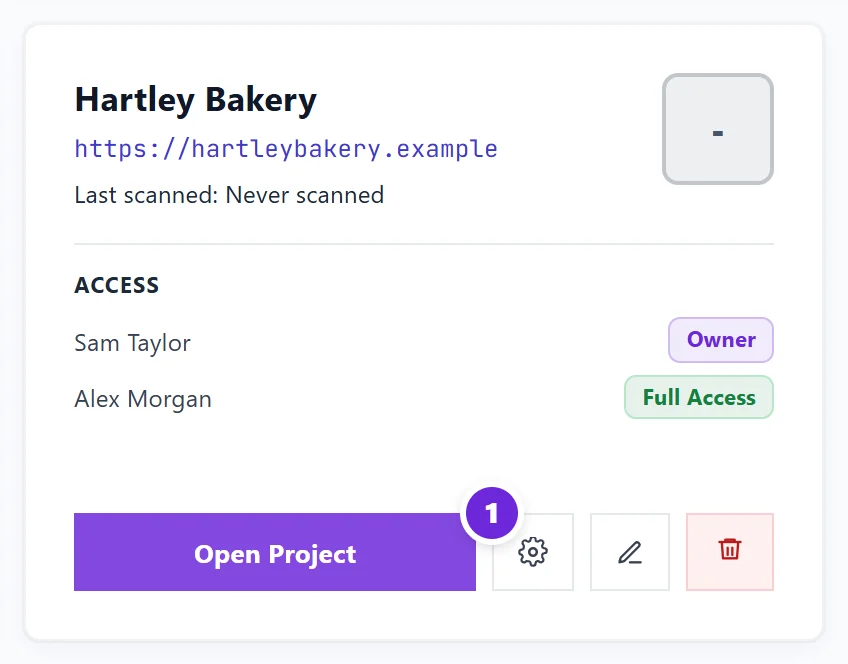
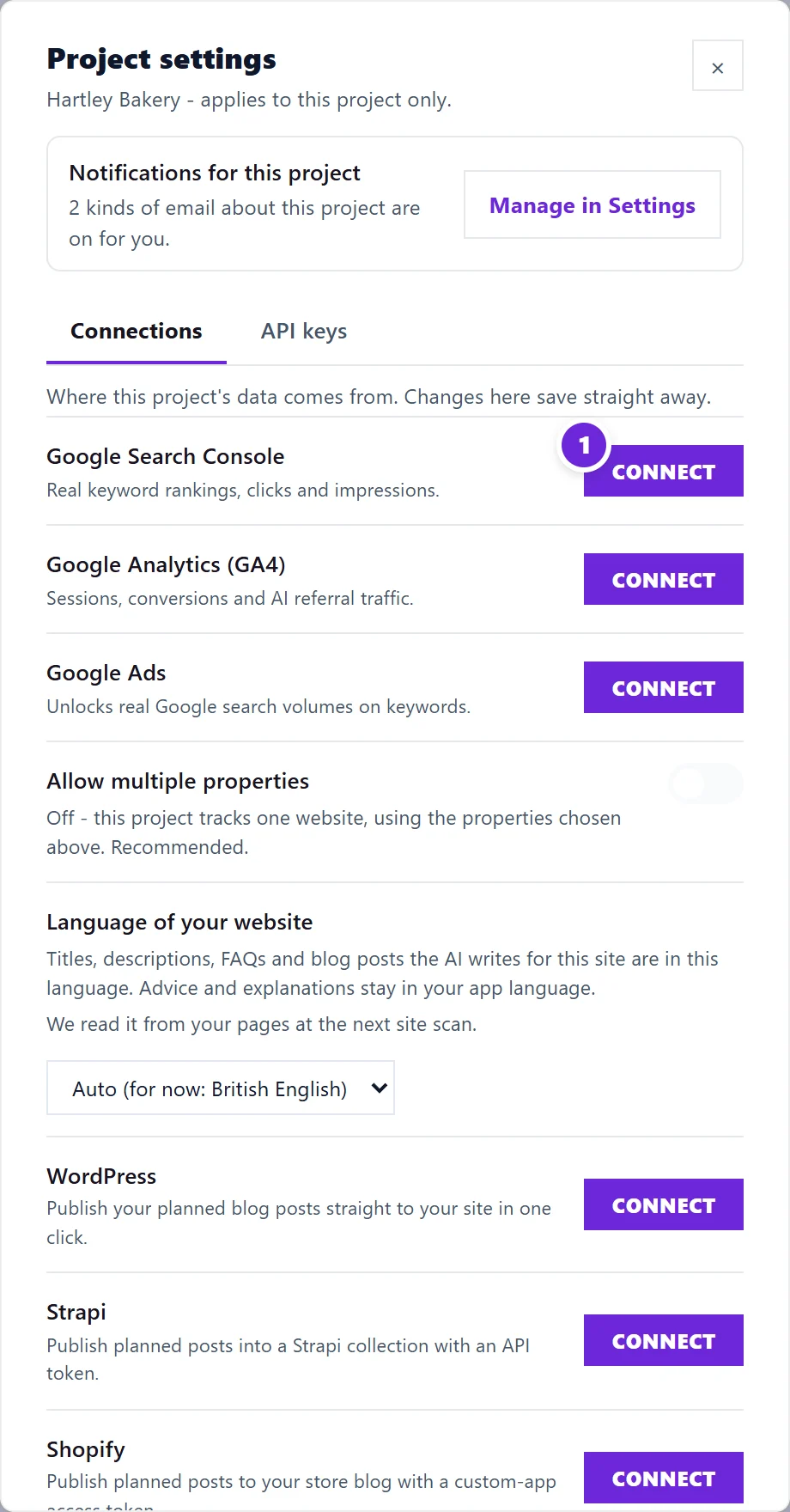
You can also connect from Project settings (the cog on your project card on the Projects screen), on the Connections tab: press Connect beside Google Search Console.
Check the right property is shown
In Project settings, Connections, the line Property shown for this project names the Search Console property the project reads. If your Google account has several sites, choose the right one there. See one website, one property.
Questions people ask
It says there is no Search Console property on this Google account. What now?
The Google account you chose cannot see your site in Search Console. Either sign in with the account that can, or add and verify your site in Search Console first (the free Academy course "Set up Google Search Console" walks you through it), then connect again.
I connected it but the Keywords page is nearly empty. Why?
A brand new Search Console property needs a few days before Google has data to show. A small or new site may also have few searches yet. Google also leaves out rare searches to protect searchers' privacy, so totals can be higher than the rows listed.
How far back does the data go?
Google keeps about 16 months of Search Console data. From the day you connect, UtilitySEO also keeps a weekly archive, so your history keeps building beyond Google's window.
Can UtilitySEO change anything in my Search Console?
No. The access is read-only. See why we ask for Google access.