How do I read the Cluster map, Wheel and Tiles views?
On this page
On the Keywords page's Topics tab, Cluster map draws every topic as a bubble, grouped into themes, sized by impressions, clicks or opportunity. Wheel draws up to eight topics around your site with each search as a leaf, and can add a topic you want to get into. Tiles lists each topic as a card. All three show the same data; pick whichever is easiest to read.
Cluster map
Each bubble is a topic. Bubbles close together share words and pages, and topics are gathered into themes.
- Size by: Impressions, Clicks or Opportunity (the extra clicks a month if the topic moved up).
- Map or Table: the table lists the same topics with theme, searches, impressions, clicks, opportunity, position and change.
- Find a topic or search: highlights matching topics.
- Filter the map: Rising, Falling or Striking distance (8 to 20), meaning close enough that a better page could move it onto page one or into the top three. Clear filters undoes them.
- The slider sets how many topics are drawn, biggest first.
- Zoom into a theme shows one theme at a time; Back to all themes returns.
- Brand and name searches (your own business, other businesses, people's names) are left off the map because they are not subjects to write about. Tick the box to draw them.
Click a bubble, or press Enter on it, to open the topic: its impressions, clicks, average position, change and opportunity, the pages that rank for it, its searches with Track beside each, and the searches around it you are missing. From there:
- Plan this cluster adds one guide for the topic plus a post for each of its searches to your blog plan.
- Add to plan opens Track, Plan with this topic picked.
- Open in Keywords, filtered to the topic's top page shows its searches in the table.
- Next step says what to do first, and Plan the merge appears when your pages compete for the topic.
Wheel
Your site sits in the middle with up to eight topics around it. Click a topic to open it out, or a search to see how to improve it: Track this search, Deeper ideas (Entrepreneur and Enterprise, one AI use) and the usual actions. Grey leaves are searches around the topic you are not shown for.
Show its gaps on the map: type a subject you want to be found for, such as "kitchen design", and its clusters you are missing are drawn dashed beside your own. It runs a topic scan, which counts against your monthly Topic gaps scans, on every paid plan. See topic gaps.
Tiles
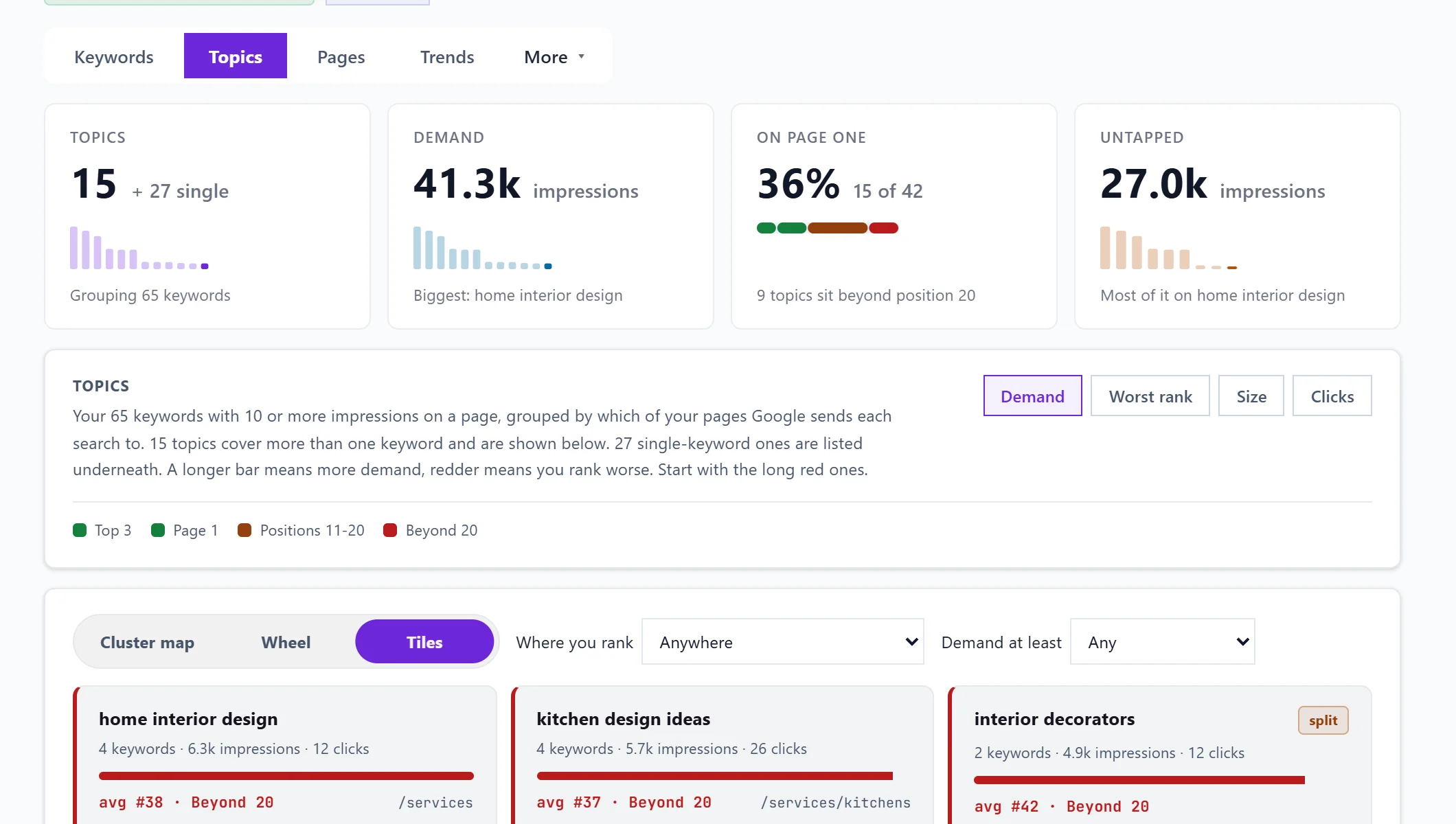
One card per topic, with filters for where you rank and demand. See the Topics tab.
Questions people ask
Why are some topics not drawn?
The slider limits how many are drawn so the map stays readable. Slide it right to draw the smaller ones.
What does "split" mean on a topic?
More than one of your pages covers it, so they compete with each other. Open the topic for which page to keep.